


Event manager
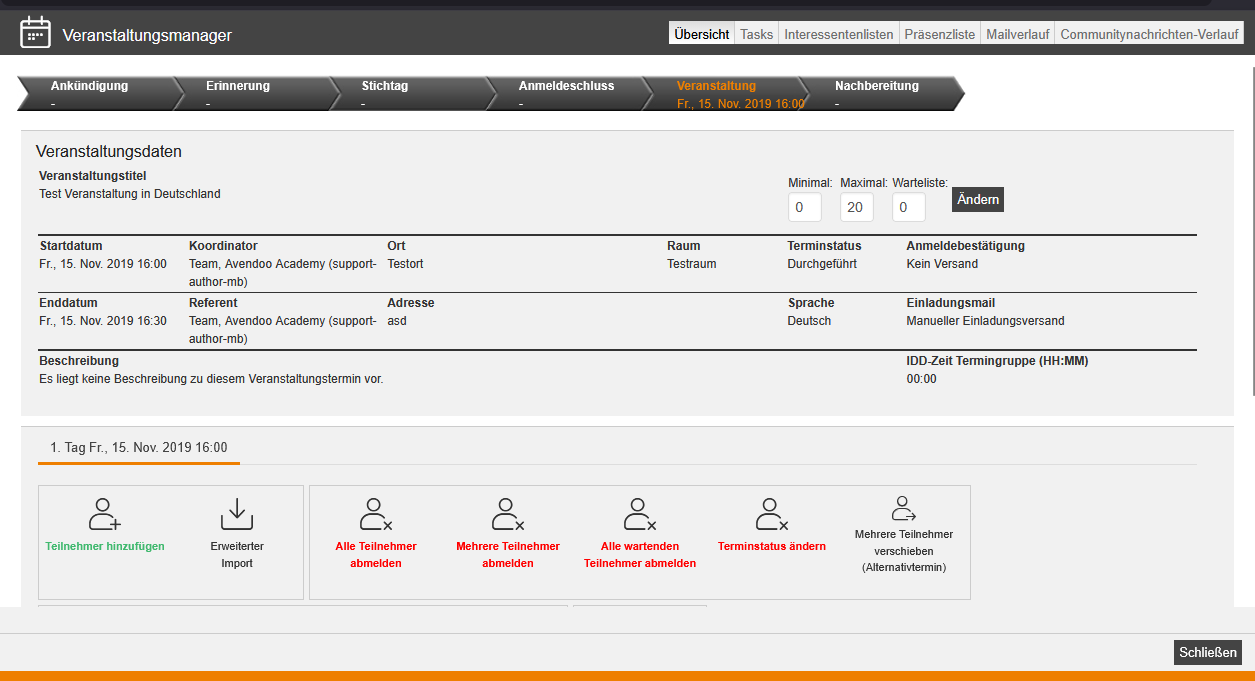
Using the Event manager, you can manage participants for training sessions, communicate with participants, and record attendance. To access the Event manager, click on the event title in the backend under Event management → Overview of event date or event date groups. You can also access the Event manager for a selected event via the calendar widget on the dashboard.
Instructions
- Send invitation
- Send event date announcement
- Send follow-up notification
- Send Thank you e-mail
- Add Participants to an Event Date
- Deregister Several Participants from an Event Date
- Removing incorrectly recorded attendances
- Changing the Event Date Status in the Event Manager
- Recording Presence in the Event Manager
- Manually Sending the Attendance List
- Download Attendance List
- Cancel registration of all participants of an event date
Important areas
Overview
The Event manager overview displays the key details of the event (start date, end date, coordinator, speaker, location, status, number of participants, and additional information).
Here you can also register participants, unregister them, search and edit the participant list, cancel the event date, and send notifications, among other actions.
Attendance List
On the Attendance list tab, you can record attendance, add comments to the attendance record, or access the attendance list as a PDF or Excel file. This is also where you close the event date once you have recorded all attendance.
The attendance list for an event date can only be completed once the start time has been reached. In event date groups, this applies to each event date individually.
E-mail History
The E-mail history tab provides insight into the notifications sent for the selected event. Here you can view notifications sent to participants, speakers, or coordinators after the fact.
If you make certain changes to the event date, such as a new location, Avendoo automatically sends an update email to the participants.
More Areas
Tasks
Here you can see all existing tasks, listed by task name, teaser, owner, trigger, status, task due date, most current notes, event, and participants for the event date.
To edit the task or mark it as closed, click on the task name.
Lists of Interested Parties
Using lists of interested parties (preliminary event dates), you can plan events without publishing them yet. The Lists of interested parties tab shows you the list(s) and the interested parties registered for them.
Community Message History
Here you can see an overview of the community message history for the event date. You can see when (date and time) the community messages were created, who the recipient was, and their content.
Prerequisites:
- To work with an Event manager, an event with an event date must first be created and inserted into a course activation.
- The author account must also have access to an activation client (otherwise the buttons in the Event manager are grayed out).
- Author account with Access to the event manager permission, as well as at least All or Own event dates: Show event dates.