


Manually Sending the Attendance List
You can manually send the attendance list from the Event manager at any time. Learn how here.
The automated delivery of the attendance list can be configured in the Event wizard under Notifications.
1
Go to Event management → Overview of event date or Overview by event date group and click the Event title to open the Event Manager for a date.
2
Go to the Attendance list tab. Select the Send attendance list button.
3
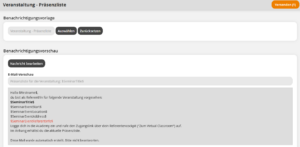
The Event – Attendance list dialog window opens. The number in brackets shows how many persons will receive the message. The recipients were configured in advance in the Event date wizard under Master data → Recipient of the attendance list.
Check the message text in the Notification preview. If needed, you can adjust it via Edit message. Alternatively, you can select a different notification template that was created as an individual notification.
4
Click Send to release the notification for sending.
Prerequisites
Author account with access to an activation client and the following author permissions:
- Access to the Event Manager
- All or Own event dates: Show event dates
- All or Own event dates: Record attendances
- Individual Notifications: Select
- In the Event wizard, a template (report) for the attendance list was selected under Notifications → How the event will proceed → Sending the attendance list, and a file type was specified.
- In the Event date wizard, one or more recipients were configured under Master data → Notifications and waiting list → Recipient of the attendance list.