


Speaker cockpit
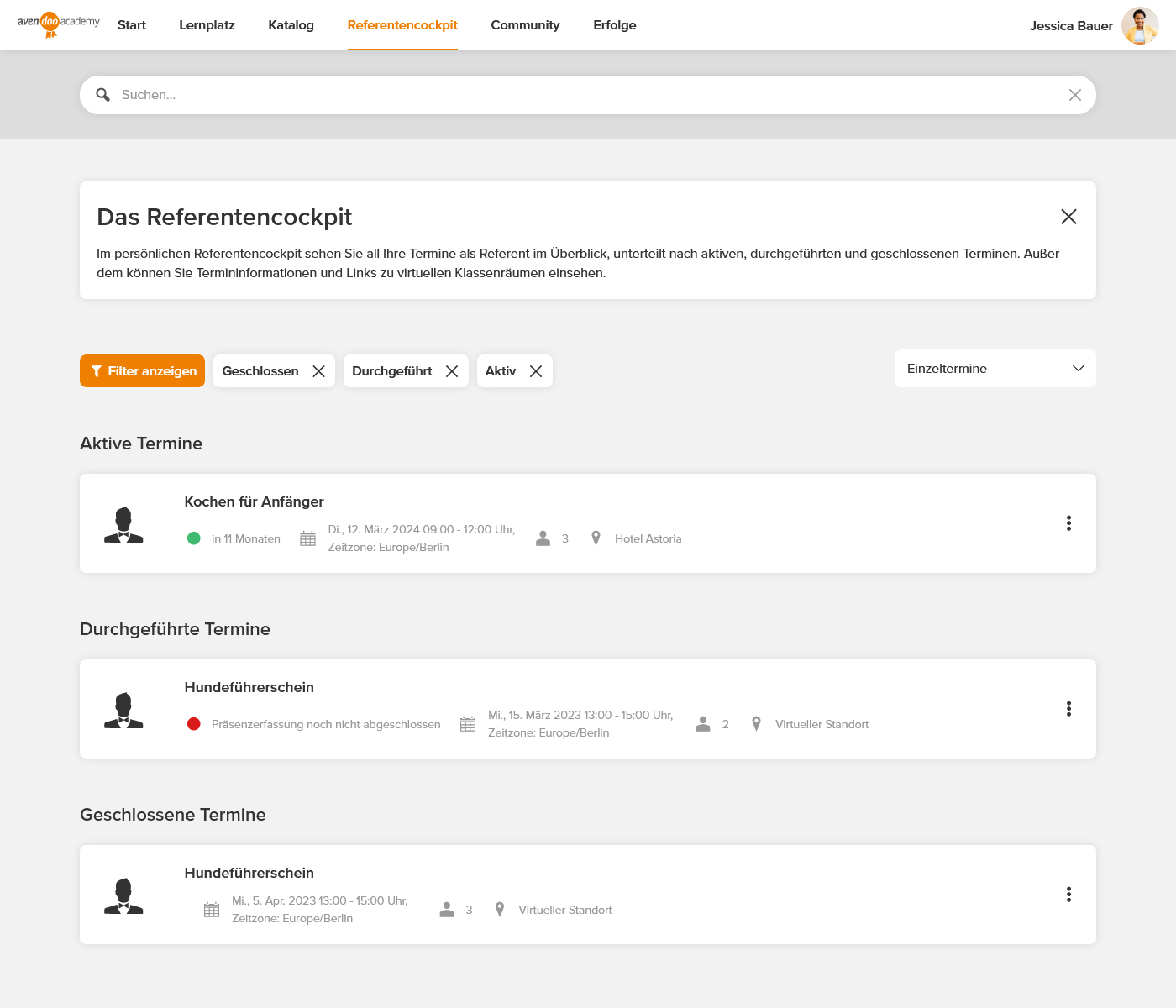
Important areas
Filter
Using the Show filter button, you can display the filter bar. Various filter options appear on the left side, allowing you to specifically narrow down the displayed event dates – for example, by title, period, or event date status (initiated, active, completed, closed, canceled).
Event date requests
As soon as a request is made, the speaker can accept or decline it directly in the speaker cockpit, if the setting has been chosen accordingly. Accepted requests are automatically moved to the Active event dates category, allowing the speaker to further process and conduct the event date.
Event date requests in the Speaker cockpit can be deactivated if speakers should only receive them via iCal email requests.
Event date information
Context Menu
Using the three vertical dots next to each event date, you can – depending on your permissions – access additional functions for the respective event date.
- Go to the date: This takes you to the event date detail page, where you can access documents provided by authors.
- To the virtual classroom: This takes you to the link for the online meeting.
- Attendance list: This takes you to the attendance list, where you can record attendance once the event date has started.
- Download attendance list: If activated, you can download the attendance list here.
- Documents: If configured, you can independently provide documents for your participants here.
- QR code for event date: Here you will receive a shareable QR code that leads to the event date.
Lorem ipsum dolor sit amet, consetetur sadipscing elitr, sed diam nonumy eirmod tempor invidunt ut labore et dolore magna aliquyam erat, sed diam voluptua.