


Removing incorrectly recorded attendances
To delete an incorrectly recorded attendance, first adjust the attendance for the date. Then remove the training inventory entry for the user. . Proceed as follows:
1
Go to Event management → Overview of event date or Overview by event date group and click the Event title to open the Event Manager for a date.
2
Go to the Attendance list tab. For closed dates, first activate the date via the Mark the date as active button.
3
You can now edit the attendance list and adjust Present for the relevant person.
4
Click Save attendance list and close the date again.
5
Then go to User management → User management, search for the relevant user using the filter settings, and click the User.
6
The User wizard opens. On the Accomplishments tab, select the Training inventory sub-tab.
7
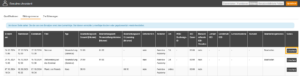
In the list, find the Training inventory entry for the relevant event and Delete the entry via the Status column.
8
Save.
Prerequisites
Author account with access to an activation client and the following author permissions:
- Access to the Event Manager
- All or Own event dates: Show event dates
- All or Own event dates: Record attendances
- User: Change, create
- Training inventory: Delete