


Add, edit, or delete participant rule for Training plans
To create, edit, or delete a participant rule for training plans, proceed as follows:
1
As an author go to Course management → training plans and click on the symbol for the participant management. The participant management for training plans opens.
2
Switch to the rules on participants tab and click on Record new rule regarding participants..
3
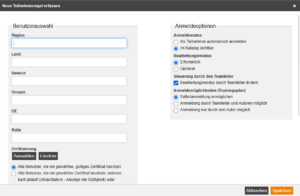
The dialog for creating the rule opens.
4
Now fill in the desired fields for the User selection on the left side. In the blue box you can see how many users will be affected by your choices.
Configure the Registration options for the user selection on the right side. Further explanations of the options can be found here.
6
Clicking on Save applies the rule.
7
To edit the desired participant rule, click on the row of the respective participant rule and then on the symbol to edit the rule .
8
To delete the rule, click on the row of the respective participant rule and select the trash symbol .
Note
- The registration options of the rule on participants do always have superiority to the settings you chose in the training plans wizard on the registration management tab.
- The order of participant rules in training plans operates according to a different logic than the participant rules for course activations or remote content activations. Read more about it here.