


Add, edit, or delete participant rule for remote content activations
To create, edit, or delete a participant rule for remote content activations, proceed as follows:
1
As an author, go to Course management → Remote content activations and click on the symbol for Participant management.
2
Switch to the Participant rules tab and click on Add rule.
3
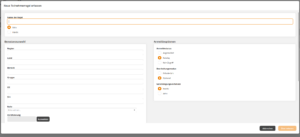
The dialog for creating the rule opens. Enter a Name for the rule and set the rule status to Active or Inactivated.
4
Now fill in the desired fields for the User selection on the left side and configure the Registration options for the user selection on the right side. Further explanations of the options can be found here.
5
Finally, click on Apply. The rule will now be displayed in the list of participant rules and provides you with a preview of how many users are selected by the rule.
6
Clicking on Save applies the rule.
7
To edit the desired participant rule, click on the row of the respective participant rule and then on the button Edit rule.
8
To delete the desired participant rule, click on the row of the respective participant rule and then on the button Delete rule.