


Assess participant
With the Assess participant function, you as a speaker can assess participants of an individual event date or an event date group directly in the Speaker cockpit.
1
Open the Speaker cockpit and search for the desired event or the corresponding date.
2
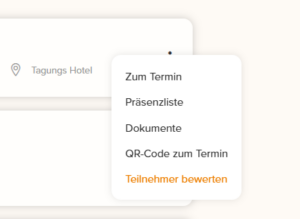
Click the three dots for the relevant date and click Assess participant. The assessment overview dialog opens.
3
Search for the participant you want to assess. If needed, you can filter the displayed participants by Course participants, Course, Assessment title, OU, or Assessment state, among other criteria.
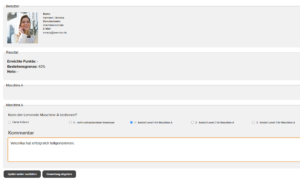
Click the row of the employee you want to assess. The assessment window opens.
4
Fill out the assessment form. Click Submit assessments. The participant’s assessment is complete.
Prereqisites
- You have been assigned the user right Assess participants (speaker).
- In the associated course, an evaluation was added and linked to the event. To do this, on the learning path under Started, activate the Dependent on option and select Superior, Main speaker, or All speakers.
- You are authorized for the relevant date or event date group as Main speaker, speaker, or superior.
Was this article helpful?
Thank you for your feedback!