


Assign Reservation
Would you like to assign a reserved spot in a training offering to a specific person? This guide explains step by step how to replace the placeholder with an employee.
1
Go to Cockpit → Reservations and click Assign next to the desired reservation. A new window will open.
2
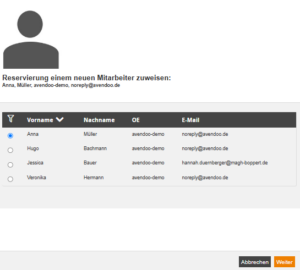
Select the Employee who should receive the reserved spot, and click Next.
3
Check the details of the selected employee in the detail overview. If all information is correct, click Assign and Close.
The reserved spot is now assigned to the selected employee. The previous placeholder has been replaced by the employee.
Prerequisites
Team leader account with the Permissions: Make a reservation and enter a possible Number of reservations.
Configure Event: In the Event wizard, one of the following options must be enabled on the Parameters tab:
-
“Substitute participants can be entered until the end of registration” or
-
“Substitute participants can be registered up to the start of the event date or up to X days before the start of the event”.
Take Runs into Account: If the selection of the substitute participant should also be possible for runs, the author must additionally enable the option “Enable selection of substitute participant for runs” on the Registration Management tab in the course activation.