


Manually Adding Qualifications in the Cockpit
As a team leader, you can also manually assign qualifications to your employees, for example if these were acquired outside of Avendoo. The assignment is conveniently done via the Cockpit. This guide will show you step by step how to proceed.
1
In the Cockpit, go to the Qualifications area.
2
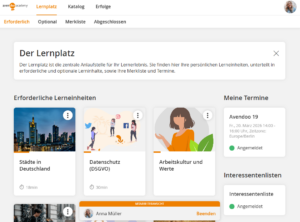
Click on the User Name of the desired employee. The Employee View opens. It is indicated by an overlay in the lower center of the window.
3
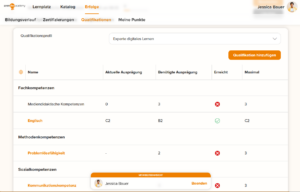
In the Employee View, go to the tab Achievements → Qualifications. Here you can now see the qualifications the person has.
4
Scroll to the section Qualifications Profile and click the button Add Qualification.
5
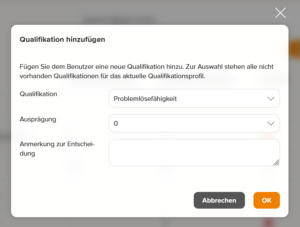
The dialog window Add Qualification opens. You can add a Qualification that is present in the employee’s current qualifications profile, but which the employee does not yet have. Select a Scale Value and add a Remark on Decision.
6
Click OK. The qualification is now included in the employee’s list of qualifications.
Prerequisites
Team leader account with the permissions
- Qualifications in the Cockpit
- View Training Inventory Entries
- Create Training Inventory Entries for Employees