


Create a Certification for Employees
As a team leader, you can record and manage your employees’ certifications in Avendoo. This applies both to new certifications obtained from external training providers and to renewing existing certifications. This guide explains step by step how to proceed.
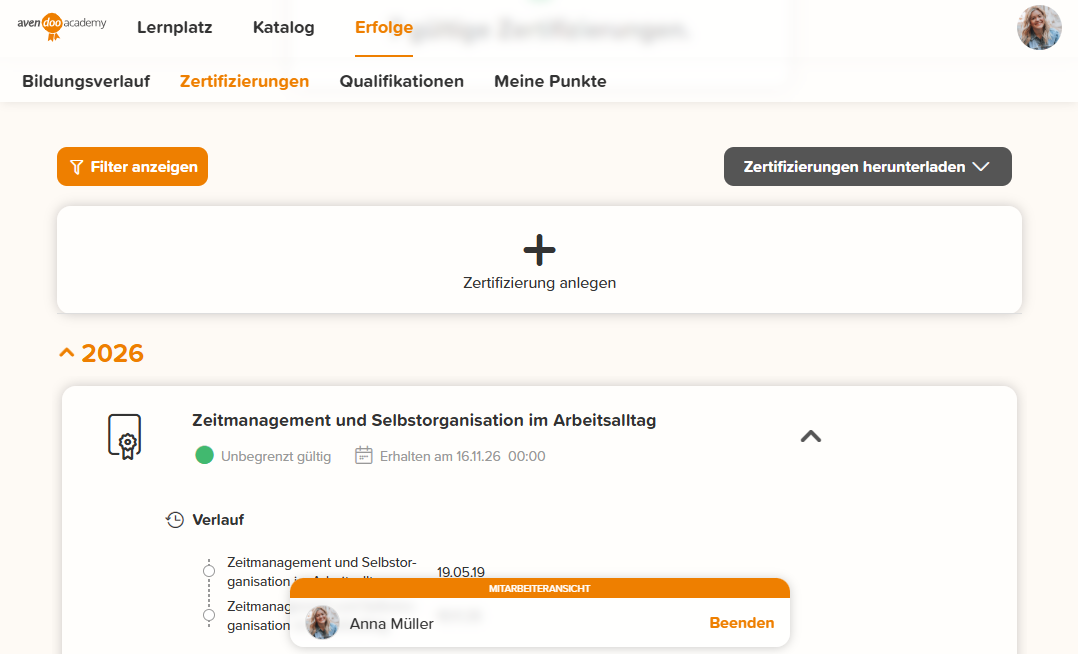
1
In the User area, go to Cockpit → Employees and select the employee for whom you would like to add a certification in Avendoo.
2
In the Employee view, open the employee’s Achievments and switch to the Certifications sub-tab.
3
Click Add certification. The form for creating a certification opens.
4
When creating a certification, you have two options:
- Select existing certificate: Click the Choose button to select an existing certificate. This is particularly useful if an existing certification is to be renewed or will expire soon.
- Generate new certificate: If no certificate exists in Avendoo yet for a training course, click the New button to create a new certificate. In this case, you can define the title, the provider, and—if validity is limited—the notification date and the notification recipient.
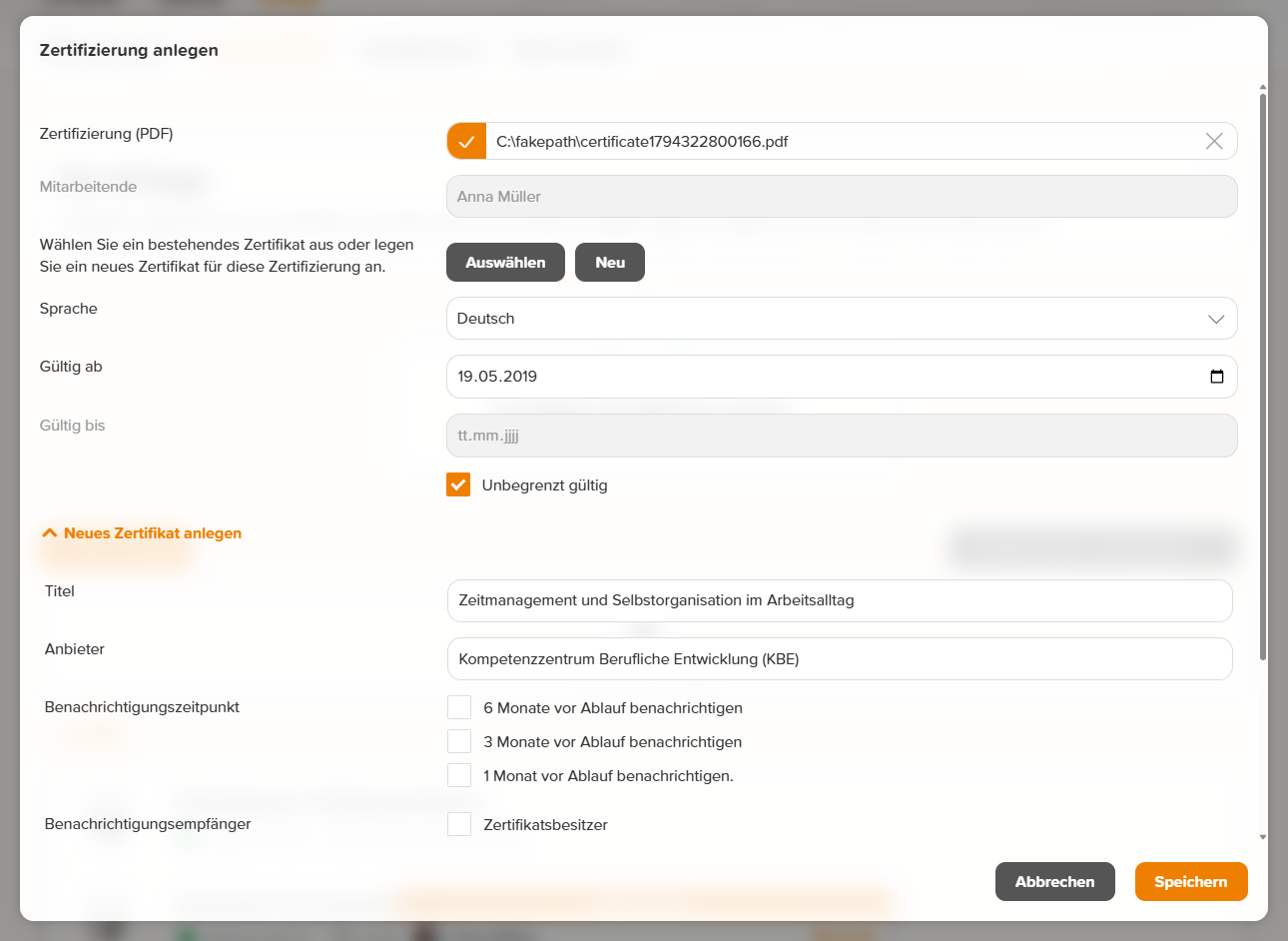
Under Valid from and Valid to, specify the certification’s validity period. If the certification has no expiration date, select Valid indefinitely.
Optionally, under Certification (PDF), you can select a PDF file that you received, for example, from an external training provider. The file is assigned to the certification and is then available for download.
5
Click Save to create the certification.
The certification is then displayed on the employee’s Certifications sub-tab.
Prerequisite
- Team leader account with the Create a certificate permission
- To select an existing certificate, the Manually recordable option must be enabled for the certificate in the author area.