


Create News items
To inform users about news in your learning environment, you can publish news in Avendoo. This will appear in the user area on the homepage. This article will show you how to create the news.
1
Go to Resources → News items and Create a news item.
2
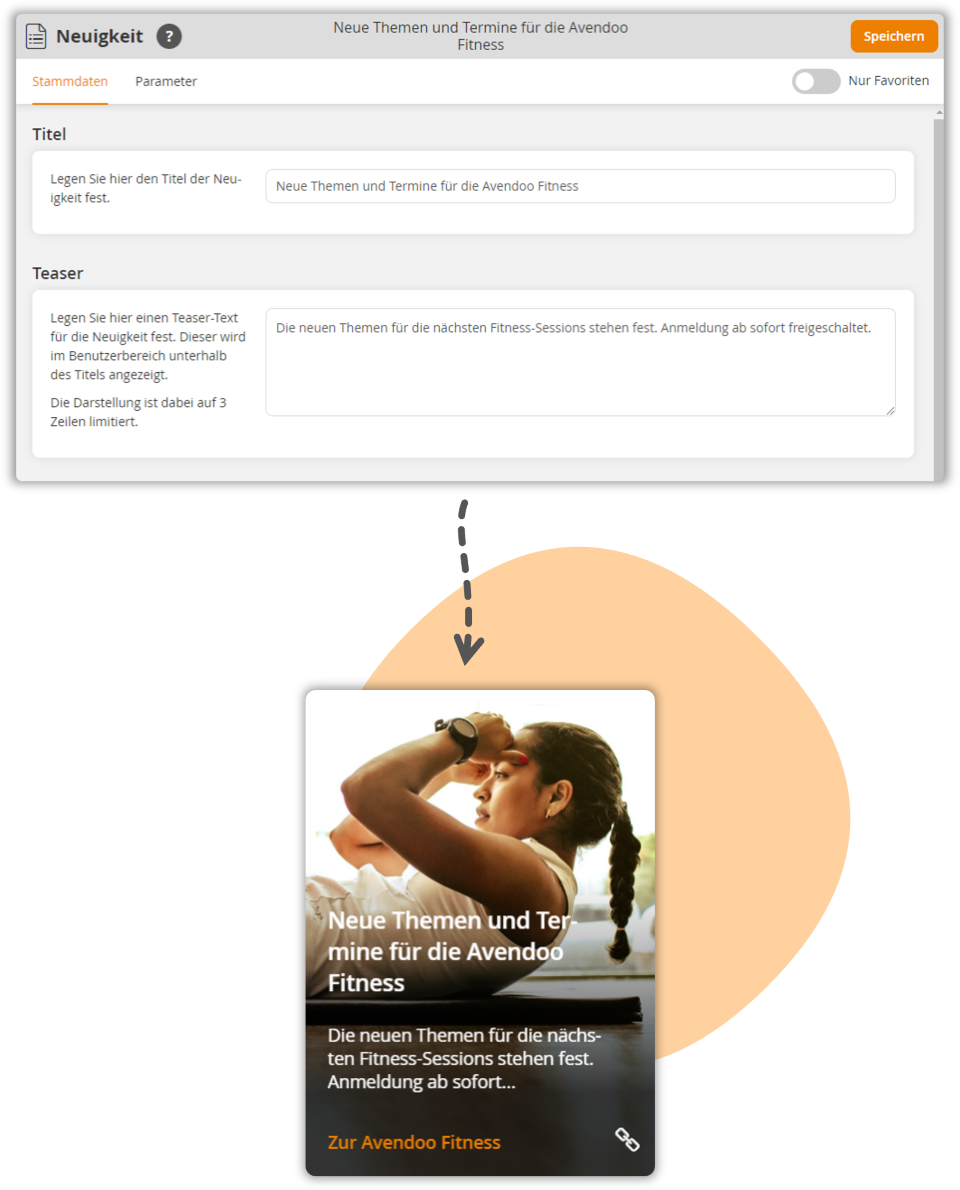
Enter a title and teaser. Both details are visible to users on the news tile as soon as the news is published.
3
Set the display period for the news under Start and End. You can choose between a time or an Avendoo version.
4
Under Parameters, you can optionally specify the URL to an image. The image is used as a background image for your news.
5
Optionally adjust the width of the news to up to four tiles.
6
Select the News type.
- Link : Enter a URL and text for the link.
- Text box: Use a text editor to create a detailed news message. The text can be formatted using Markdown instructions.
7
Save the news item.
In the next step, you must publish the news item in the client so that it appears.
Tip
Upload the image for your news item as a global medium in Avendoo. This ensures it is displayed across all tenants.
The URL for the global medium is structured as follows:
- Protocol: https://
- Your avendoo domain: academy.avendoo.de
- Path and Object ID: image.media?objectId=123
Example:
https://academy.avendoo.de/image.media?objectId=1234567891234
You can find the Object ID in the global medium’s information:
Administration → Global Media → Right-click on the medium → Information
Prerequisite
Author account with the Resources (objects): News Change, create permission