


Calendar
If you want to specify that locations, rooms, or materials are not available on certain event dates—for example, on public holidays—you can use the calendar function. Learn here how to create a calendar.
1
Go to Resources → Calendar → Create. The calendar wizard opens.
2
Assign a title, e.g., public holidays in Germany.
3
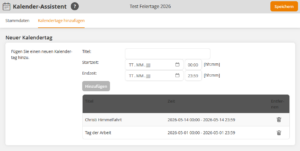
On the Add calendar days tab, enter all days or event dates on which the resource is not available.
Assign a descriptive title for each and enter a start and end time. Then click Add. The entry will then appear in the list and can be deleted using the trash can icon .
4
Click Save.
After you have created the calendar, you can navigate to the respective resource (location, room, material) and integrate the created calendar via the Calendar tab. You can also integrate multiple calendars and combine them with each other (e.g., a calendar for public holidays in Germany + a calendar for public holidays in a specific federal state).
Prerequisites:
Author account with the permission Calendar: Change, create.