


Information dialog box
If you select the menu item Information in the context menu of the respective object, the Information dialog box opens with the tabs General, Use, History, and Security. For some objects, there are also the tabs IDs, Notes, and Ratings.
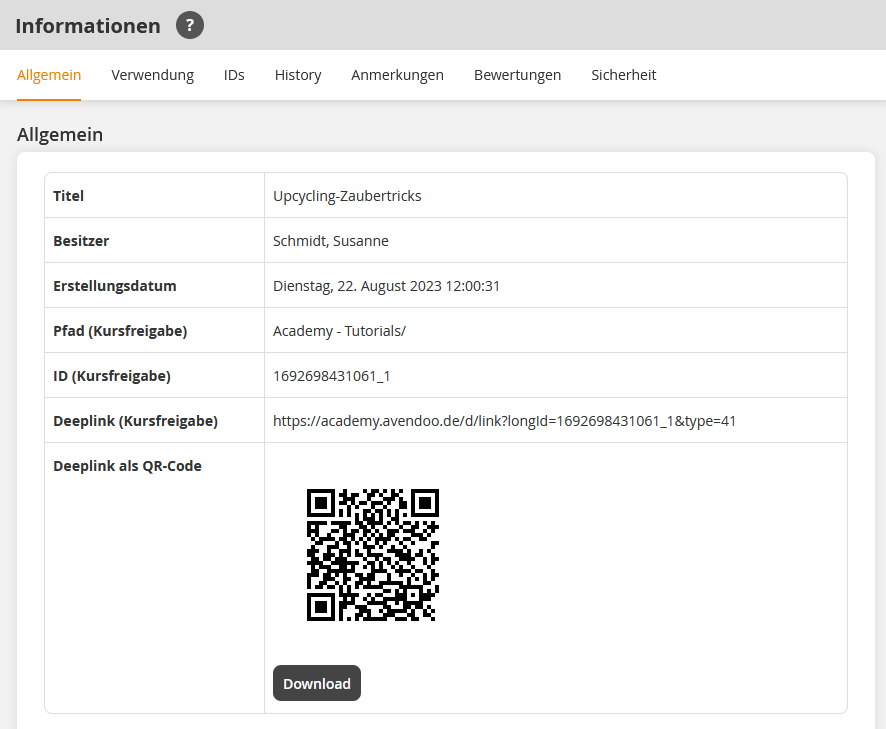
Important areas
General
On the General tab, you will find important information about the selected object. In addition to the path, you can also find the deep link for course activations, remote content activation, or training plans. This is also displayed as a QR code.
The information on this tab includes:
- Title
- Owner
- Creation date
- Path
- ID
- Deeplink (also as QR code)
- Translator
- Media used
Use
On the Use tab, you will find all objects in which the selected object is used, sorted by type, path, title, and external reference.
History
On the History tab, you can review the history of editing with information about the date and time and the respective editor.
Security
Under the Security tab, you can extend the object permissions for specific users or permission groups. To do this, click either the User management button to select individual users and assign them object permissions, or the Permission group button to select a permission group and assign it object permissions. By default, the generally assigned permissions apply, but you can extend them for the selected object.
Example: All authors have system-wide permission to select media, i.e., to insert it into an object. However, for the selected object, you want authors to also be able to change, create, and delete media. You grant these additional permissions for the selected object by checking the corresponding boxes.
To edit object permissions afterward, click the pencil, check or uncheck the corresponding boxes, and click the Save button. When you click the pencil, you will also see the inherited object permissions.
Other areas
For some objects, the Information dialog also includes the tabs IDs, Notes, and Ratings.
IDs
Under the IDs tab for course activations and training plans, you will find information about the title, ID, and elements of the course activation. You can also download the course activation as a SCORM or CMI5 package.
Notes
On the Notes tab, you can review the manually inserted notes from the course activation or training plan wizard.
Ratings
On the Ratings tab, you can review all ratings that have been submitted for a course activation or training plan on its info page. You can see how many ratings have been submitted, and an average rating is displayed. The ratings are listed by date, user, rating, comment and can be removed using the trash icon.