


Adding a Certificate to a Course
In this guide, you will learn how to add a certificate to a course. You can assign a certificate either for the successful completion of the entire course or for individual course contents such as events or knowledge tests.
1
Navigate to Learning Content → Courses and edit an existing course or create a new course.
2
You can assign certificates either for the successful completion of the entire course or for individual course contents.
Avendoo provides you with the following options for this:
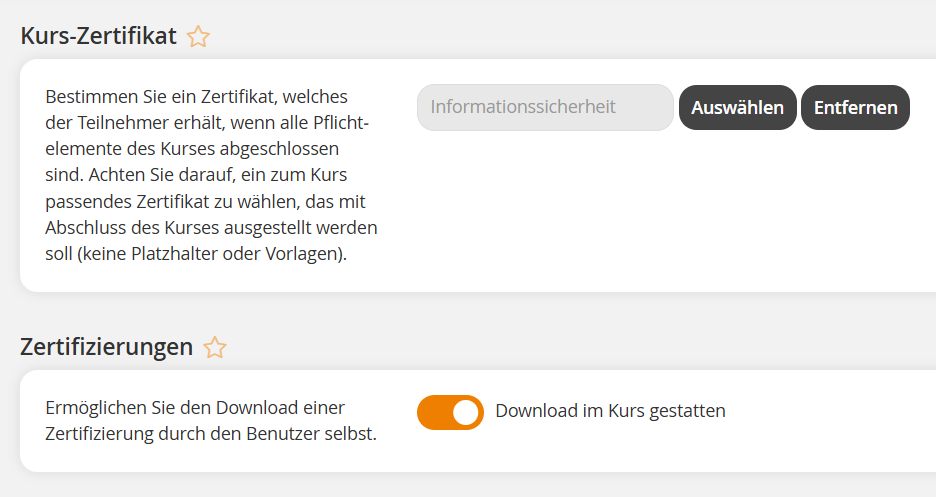
Course Certificate
In the course wizard, select a course certificate under Parameters → Certifications.
The certificate is issued as soon as a user has successfully completed all Mandatory Content of the learning path. Only content whose edit mode is set to Mandatory or Pass is taken into account.
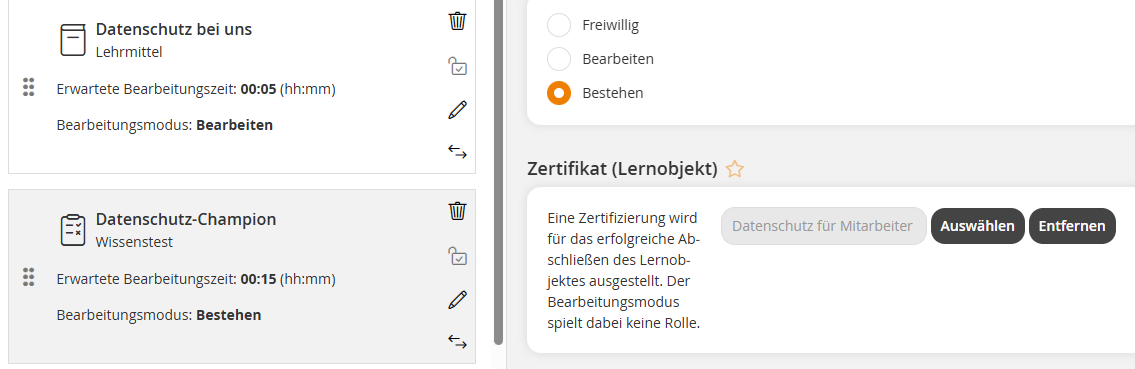
Certificate (learning object)
In the course wizard, under Course Contents, select the desired learning content and click the pencil icon. Then, in the general properties of the learning object, assign the desired certificate under Certificate (learning object).
The certificate is issued as soon as the user has completed the learning content, regardless of the edit mode set.
This variant is particularly relevant when the certificate contains variables that originate from the learning content, such as details of an event date or the number of points earned in a knowledge test. These variables are only populated if the certificate is directly linked to the learning content.
3
Save the course.
Certificates are issued for future course completions and edits to learning content. No retroactive issuance will take place.
Prerequisites
Author account with the following permissions:
- Courses: Change, Create
- Certificates: Select