


Advanced Import of Participants
The Advanced Import in the event manager allows you to register a larger number of participants for an event date without having to select them from the list in user management. You can have participants automatically recognized and registered based on their email address, first and last name, or login. Learn how to proceed here.
1
Go to Event management → Overview of event date or Overview by event date group and click the Event title to open the Event Manager for a date.
2
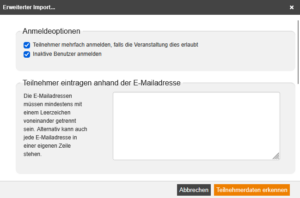
On the Overview tab, select the Advanced Import option. A dialog window will open.
3
Enter the participants based on their email address, first and last name, or login. By default, the options Register participant multiple times if the event allows it and Register inactive users are enabled.
Click on Recognize participant data.
4
In the next step, all participants recognized based on the participant data you entered will be displayed as a list. If the entered data cannot be matched to an existing user, a corresponding note will be displayed.
You have the option to deselect individual participants by removing the checkmark. Once you have reviewed the list, click on Add.
5
The participants will be registered, and a confirmation of the process as well as a list of registered users will be displayed. Finally, click on Close.
Note: This process can overbook event dates, as participants are registered directly on the list of participants.
Prerequisites
Author account with access to an activation client and the following author rights:
- Access to the event manager
- All or Own Event Dates: Show event dates
- All or Own Event Dates: Do deregistrations and registrations
- User: Select