Use Cases for Rules on participants
Read through these practical examples with the selected settings to better understand participant rules:
Automatic Enrollment in Mandatory Training
An organization wants to automatically enroll all employees in the mandatory training “Workplace Safety.” It is important that employees do not have the option to unenroll themselves from the course.
The solution involves creating a participant rule with the following settings:
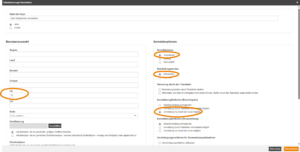
User Selection
OU: %
The percent sign selects all users of the client, i.e., all employees of the organization. If your client contains not only employees, the user selection must be further refined.
Registration Options
Registration status: Registered
Edit mode: Mandatory
Registration options (course activation): Only author can do registration
Participants are enrolled directly and find the course on their learning space under Mandatory. The setting Only author can do registration is important to ensure that deregistration can also only be performed by the author. Whenever self-registration is enabled, self-deregistration is also possible. The approval process can also be disregarded when the enrollment status is Registered.
Automatic Registration Based on Entry Date
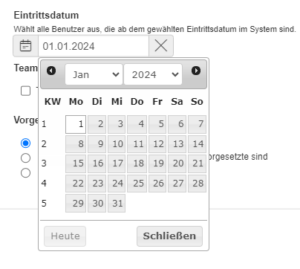
An organization wants all employees who joined the organization on or after January 1, 2024, to be registered in a course activation.
The solution involves creating a participant rule with the following settings:
User Selection
Entry date: 2024-01-01
The date entry selects all employees whose user data contains a date on or after January 1, 2024. Note that the entry date does not refer to the creation date of the user account.
Registration Options
Registration status: Registered
Edit mode: Mandatory or Optional
Participants are enrolled directly and find the course on their learning space under Mandatory or Optional—depending on how important the topic is. Based on this, the author can decide whether self-registration/-deregistration is possible.