


Create and Renew X.509 Certificate for gut beraten Interface
This process is only relevant for customers who record IDD times for training and transmit them via interface to gut beraten.
The gut beraten interface allows the automatic transfer of IDD times. Part of the configuration of the gut beraten interface is an X.509 certificate, which enables the signing for secure transmission of data to the gut beraten server.
This X.509 certificate is valid for one year and must then be replaced by a new certificate. If the X.509 certificate is not replaced, the data will no longer be accepted by the gut beraten interface. The replacement is possible 30 days before the expiration of validity.
This replacement process must be carried out by the customer by the person who is registered with the gut beraten license for the interface. This person also receives personal one-time passwords to perform the download
1
Either upon request or automatically for the extension of the X.509 certificate, you will receive an e-mail with the subject
“[TGIC] – Activation/Change of the X.509 Authentication of the TGIC User Account XXXXXXXX”. This e-mail contains a link for downloading the new certificate for authentication via X.509. Start the download.
2
Enter the serial number of the certificate (received in the e-mail) and the one-time password (in a separate e-mail OR by mail).
Example:
Serial number: 8507
PW: z64z-r2R#v8c
Start the download via Download PKCS#12. Do not activate the certificate yet. Leave the browser window open; this will make activation easier later.
3
Navigate in the backend of your learning environment to Administration → PKCS#12 Certificates and click on Create. The PKCS#12 Certificate wizard opens.
4
Assign a title such as gut beraten 2026 and a use case.
5
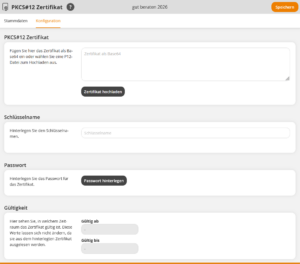
On the Configuration tab, click on the Upload certificate button and upload the downloaded PKCS#12 file. This file will then be converted to Base64.
Under Key name, enter the number of the TGIC user account. You will find this number as the entry “TGIC User Account: XXXXXXX” in the e-mail from TGIC.
For Password, please enter the new password of the certificate from the e-mail with the download link to the PKCS#12 certificate.
If you have entered both details correctly, the start and end date for the one-year validity will now be displayed below under Validity.
6
Save. Switch to the Configuration tab in the PKCS#12 Certificate wizard. Copy the text from the PKCS#12 Certificate field.
7
Now go to Administration → System settings and open the system setting insuranceDistributionDirective. The wizard for system settings opens.
8
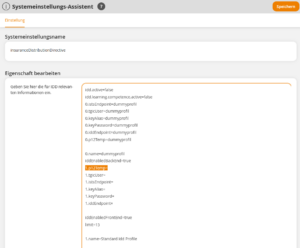
For the appropriate IDD-gut-beraten profile configuration (Note: There may be multiple profile configurations) with the appropriate tgicUser entry (1.tgicUser=8777776519), you must store the certificate base64-encoded. You will find the appropriate value for the tgicUser, with which you determine the appropriate IDD-gut-beraten profile, after the entry “TGIC User Account: XXXXXXX” in the e-mail from TGIC.
9
Once you have found the appropriate profile, insert the base64-encoded text from the clipboard after “1.p12Temp=”, i.e., the copied text from the text field on the Configuration tab in the PKCS#12 Certificate wizard. Here, “1.” may vary depending on the number of IDD-gut-beraten profiles (e.g., 4.etc.). Find the appropriate entry “X.p12Temp=” and then delete everything after the equals sign. Then copy the new certificate text from the text field above.
10
In the same profile, store the new password of the certificate under “x.keyPassword=#44of79.fhUh”: s5zz1Q9q5#y?
from the e-mail with the download link to the PKCS#12 certificate.
Then save.
11
If you still have the TIC-PKI tab open in the browser (see step 2), where you downloaded the certificate (PKCS#12 file), you can now click on Activate certificate there. If you have closed the browser tab, repeat steps 1 and 2. You can use the “one-time password” as many times as you like until the certificate has been activated.
Finally, the message Your X.509 certificate has been successfully activated is displayed. The certificate is now valid.
If the old certificate had already expired because the renewal of the X.509 certificate was carried out too late, the new certificate is valid immediately. Nevertheless, you should activate the certificate for safety reasons
Prerequisites
Authors account with the permissions Change, create system settings as well as Change, create PKCS#12 certificates.