


Working With Tasks in the Event Manager
The Tasks tab in the Event Manager provides an Overview of tasks related to events and dates. In addition to Information on the Owner, Due date, and Status, tasks can be edited and filtered. This makes it easy to track and manage the current status of tasks. Tasks can be displayed by Event date group as well as individual Dates. The Status options available for a task are Open, Being carried out, Closed, and Postponed. Learn here. how to work with tasks in the Event Manager.
1
Go to Event management → Overview of event date or Overview by event date group and click the Event title to open the Event Manager for a date.
2
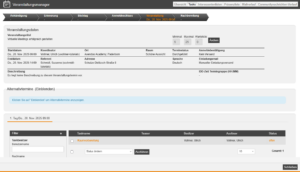
Go to the Overview of tasks tab. Here you can now see all tasks for the event date. If it is an event date group, you can switch the view between all tasks for the event date group and the tasks for the individual dates.
3
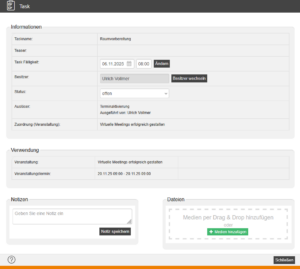
To edit the status of a task, click on the name of the task. The dialog window for the task opens. Here you can adjust the Due date and time of the task, change the Owner of the task, change the Status of the task, and add Notes and Files. You can also see further Information about the task (e.g., event).
4
Click on Close to apply the changes.
3 Ways to Change the Status of Tasks
Click on Status
The status is displayed for every task. If you click on this status, the status changes, e.g., from not yet completed to closed.
Editing the Task
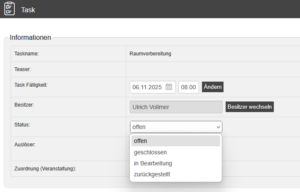
If you click on the name of the task, the dialog window for the task opens. Here you can now edit and save the status in the Dropdown field.
Bulk Edit Function
Under the List of tasks, you can use the bulk edit function to, for example, set all tasks to closed.
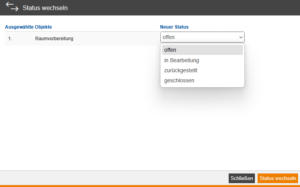
Mark the tasks in the list that you want to edit with a Checkmark and then select Change status from the Dropdown menu. Click on Execute. The Change status window opens. Select the desired status here and click on Change status.
Prerequisites
Author account with Access to an Activation client and the following author rights:
- Access to the event manager
- All or Own event dates: Show event dates
- Task templates have been linked to the event, which generate tasks for event dates when a Trigger occurs.