


Bulk Edit Function: Export
With the bulk edit function Export, you can export selected objects from Avendoo (e.g., instructional material, courses, media, etc.) and provide them as a ZIP file. Depending on the export mode, you can then import the file into another Avendoo system or use it for translation with Across, for example.
1
Navigate to the desired view, for example Instructional Material, and select the objects you want to export.
Then select the Export option from the dropdown menu of Bulk Edit Functions below the list view.
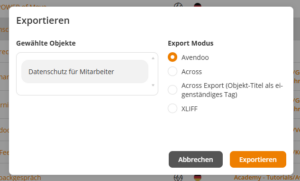
The Export dialog window opens.
2
Select the desired export mode. The following options are available:
Avendoo
Select this export mode if you want to reuse the selected objects within Avendoo, for example for migration or import into another Avendoo system.
XML (Across)
Select this export mode if you want to export the content for translation with Across. Specify the desired target language and choose whether to export only content with an untranslated target language or all selected objects.
Across Export (Object Title as Standalone Tag)
In this export mode, the object title is output as a standalone tag for Across. If necessary, adjust the file name, select the desired target language, and specify whether to export only content with an untranslated target language or all selected objects.
XLIFF
Select this export mode if you want to export content for translation with an external translation tool in the standardized XLIFF format.
3
If you have selected the export mode XML (Across), Across Export (Object Title as Standalone Tag), or XLIFF, the following options are available:
- Export only if target language is not translated: Content already available in the selected target language will not be exported again.
- Export All Objects: All selected objects are exported regardless of their current translation status.
4
Click Export to start the export.
The selected objects and their associated components are exported according to the selected export mode. For a language-related export, the content is prepared for the selected target language.
5
Save the generated ZIP file to your computer. You can then reuse it, for example for translation with Across or for a later import into Avendoo.
Requirements
Author account with the right Import/Export: Export Objects