


AI chat in the Instructional material wizard
If you need support creating your instructional materials, you can contact the AI in the chat at any time. The AI supports you, for example, with wording texts, generating ideas, shortening or rephrasing content, and creating initial text drafts. This step-by-step guide shows you how to use the AI chat in the Instructional material wizard.
1
Navigate to Learning content → Instructional material.
2
Use the Create button to create a New instructional material, or open an existing instructional material by clicking the title in the List view. The AI chat is available to you throughout the Instructional material wizard.
3
Example use case
You are in the Content editor and would like to create an introduction text for your Instructional material page, but you are unsure about the wording.
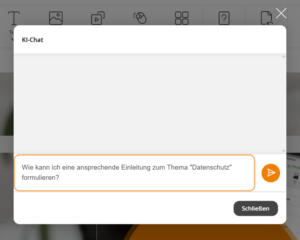
Click the Button AI chat and enter your request in the Text field of the dialog window. For example, ask the AI for a text draft.
Example:
“How can I write an engaging introduction on the topic of “Data privacy”?”
4
Click the arrow next to the Text field to send your request to the AI. You will then immediately receive a suitable answer or a text suggestion from the AI, which you can copy and paste into your instructional material.
5
Use Close to exit the AI chat.
Prerequisites:
You have installed and configured the AI package