


Automatic Tagging
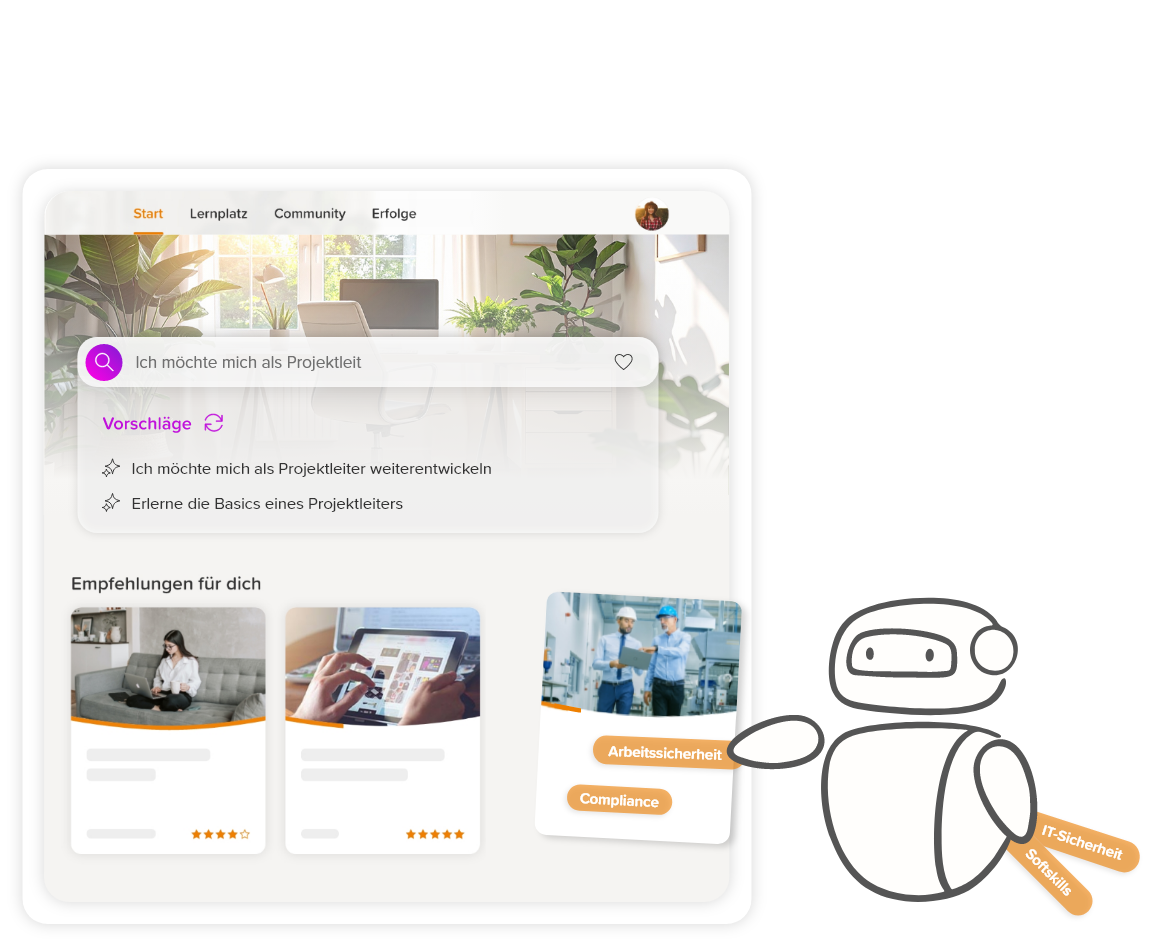
Automatically tag instructional material. These tags can also be transferred to courses and course activations as custom fields and thus function as filters in your catalog. The AI searches the instructional material based on tags you specify and assigns them according to content. This function is particularly useful if you want to retrospectively tag large amounts of learning content in your learning world.
Preparation
To use this function, you must install the AI Package Add-on and create an API author (author account with the API login mechanism). The API author requires the permission to Change external content for instructional materials, courses and course activations. In addition, they need access to the clients in which automated tagging is to be carried out.
You must define the tags to be assigned yourself in advance and create them in Avendoo as a User-defined field. It is important that the user-defined field has the Multiselect Field type and the Dropdown options are the tags to be assigned. Connection type must be set to Instructional material, Course and Course activation and selected. In addition, the user-defined field should be visible in the frontend (Visibility in the user area checked) if you want to use it as a filter.
Example
You want to make your compliance training searchable by content.
- You create a custom field named Compliance.
- Select Multiselect as the field type.
- Under Connection type, activate Instructional material, Course, and Course activation.
- Place a checkmark at Visibility in the user area.
- Enter these Dropdown options: Occupational safety, information security, data privacy, corruption and fraud prevention, conflicts of interest, diversity, etc.
Configuration
1
Navigate with your author account to Administration → Add-ons. In the row of the AI Package add-on, click the Configure command.
2
The configuration window of the add-on opens. In the row next to Automatic tagging of teaching materials, click the gear icon.
3
The configuration window for the automatic tagging of teaching materials opens. On the General tab, enter the username and password of your API author.
4
On the Global tab, activate the tag transfer if you want the tags to be transferred from the instructional material to the course and course activation. This is the requirement for the tags to be used as filters in the frontend.
You also select the user-defined field(s) to be used for tagging here.
If you want to use individual settings per client, you can make these under the Client-specific tab.
5
Save.
Generate tags
1
Navigate with your author account to Learning content → Instructional material.
2
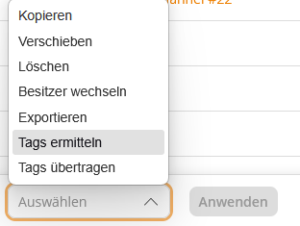
Select all instructional materials to be tagged using the checkmark. In the drop-down menu at the bottom left, click on “Generate tags” and then on the Apply button next to the drop-down field.
3
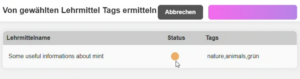
The window Generate tags from selected instructional materials opens. Click on Generate tags. The AI now checks the content of the instructional materials and assigns the tags. This may take a little longer depending on the number of selected instructional materials. The status indicator turns green when all instructional materials have been processed.
Transfer tags to courses and course activations
The tags are automatically transferred to the courses and course activations once a day. If you want to trigger the transfer immediately, you can do so via the drop-down menu. To do this, click on Transfer tags and then on the Apply button.
The total of all tags from the instructional materials is always transferred to the courses and course activations.
Prereqisites
- The AI Package is installed and set up
- Author account with the permission AI Package Addon (Add-on): Automated tagging
- API author with the following permissions:
- Instructional material: Change external content
- Courses: Change external content
- Course activations: Change external content
- Access to all clients in which automated tagging is to be carried out
- User-defined fields of the Multiselect type with the Connection type Instructional material, Courses and Course activations