


Assigning object permissions
You can extend the permissions of specific users or user groups for objects or categories. This means that the selected users have additional permissions there. For example, they can create or delete elements instead of just viewing them. You can learn how to do this here.
1
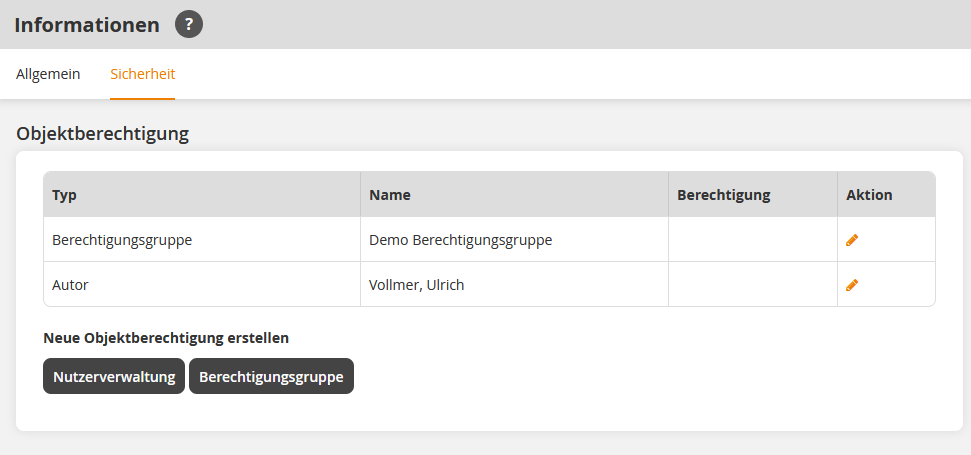
To set object permissions for categories or objects, right-click on the desired category or object. The context menu opens. Select Information. The Information dialog box opens.
2
Go to the Security tab. Click on the User management button to select individual users to whom you want to grant more permissions. Alternatively, click on the Permission group button to assign more permissions to an entire permission group.
3
A selection page opens for choosing users or permission groups. Select the users or the permission group to which you want to assign the permissions and click the Select button.
4
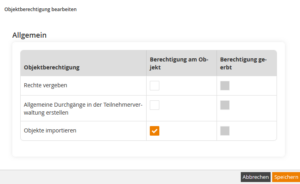
The Edit object permissions dialog box now opens.
5
Use the checkboxes to select the object permissions you want to grant to the author or the permission group. Click the Save button.
In the overview, the user or permission group will be listed. You can edit the object permissions for the respective user or permission group via the pencil icon, delete them, or view which permissions have been inherited.
If you want to remove object permissions, first click on the pencil icon, then uncheck the corresponding object permissions and click the Save button.
Note:
Please note the following rules regarding object permissions as an author:
- If you assign an object permission to a category, it is inherited by its subcategories. You can then only edit the permissions in the original category.
- If you possess an equivalent or higher global permission, the object permission is ignored and the global object permission applies.
- If you have an object permission DIRECTLY on the object, the category and global object permissions take precedence.