


Import training inventory
To import training inventory for one or more users, Avendoo provides the option to import training inventory using a CSV file. In this guide, we will show you how to proceed and provide you with a template.
Template
This CSV file serves as a template for the manual import of training inventory.
1
As an author, go to Reports → Training inventory. Select the dropdown arrow on the Create button and choose Import training inventory.
2
In the Import training inventory window, select a CSV file. The file may contain the following values in the type column:
- course for a course
- curriculum for a training plan
- certificate for a certification
- seminar for an event date
For seminar, the location can be specified in the location column.
3
Select the client in which the specified users for whom training inventory is to be imported are located.
4
Specify the delimiter used in the CSV file. By default, the value Semicolon(;) is selected.
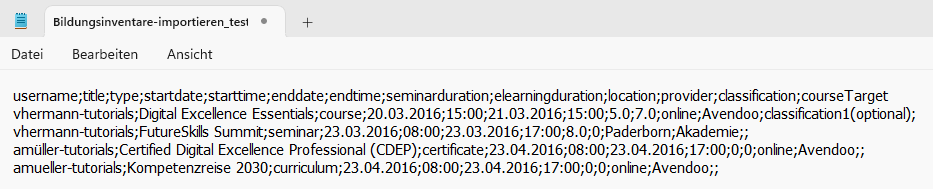
To find out which delimiter is used in your CSV file, you can open the file in a text editor. The individual columns and the information they contain are separated from each other by the selected delimiter.
5
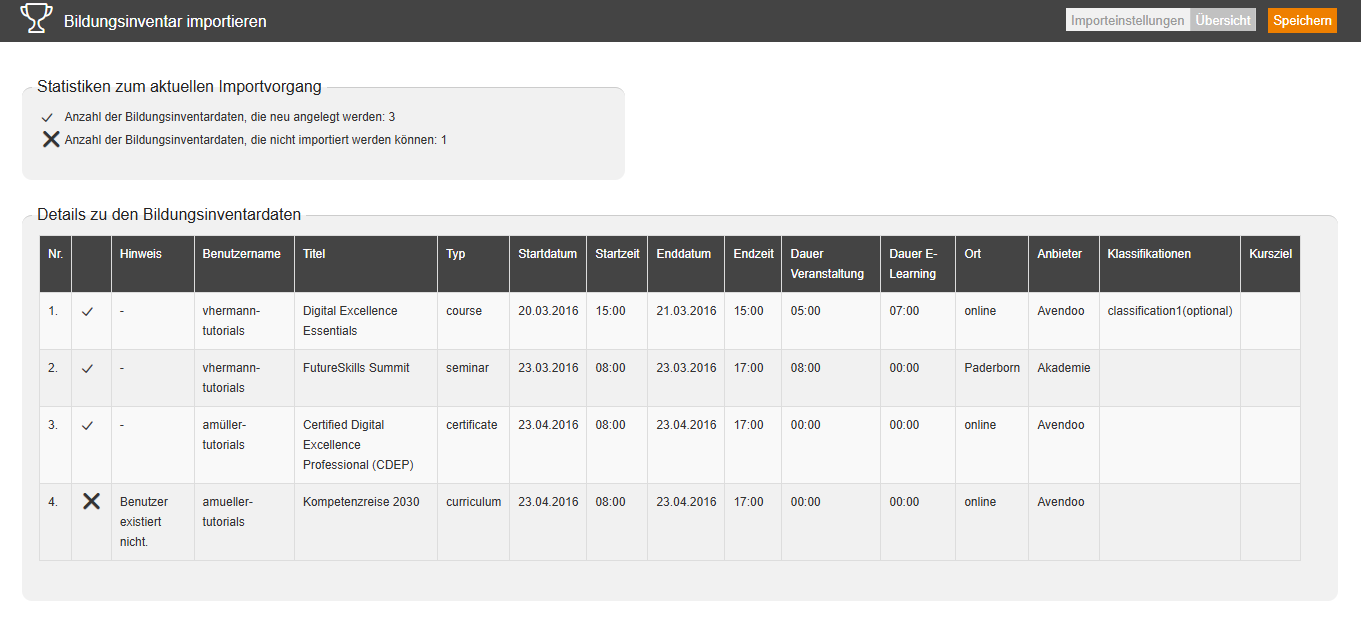
Switch to the Overview tab to get a preview of the import. You will receive an overview of which training inventory data can be imported and which cannot. The data is not yet saved at this point.
The Note column provides information about why the import does not work (e.g., because a user with this user name does not exist in the selected client). Make adjustments to your CSV file and try again.
6
Click Save to import the training inventory according to the overview.
Requirements
Author account with the permission Training inventory: Change, create