


Customize System Texts (Changed.Bundles.Xml)
With the changed.bundles.xml System Setting, You Can Change Interface Texts in Avendoo System-Wide, e.g. to Rename Menu Points in the User or Author Area or to Adapt Designations to Your Organization’s Terms. Every Text is Addressed via a Unique Bundle Key and Can Be Overwritten per Interface Language.
If You Only Want to Adapt Designations for a Single Client, Make the Corresponding Changes in the Client Wizard on the Texts/Terms Tab.
1
First, Determine the Bundle Key. The Bundle Key is the Unique Identifier of an Interface Text in Avendoo (e.g. user.global.explanation.learnplace.title for the Menu Point “Learning Place”). You Can Determine It in Three Ways:
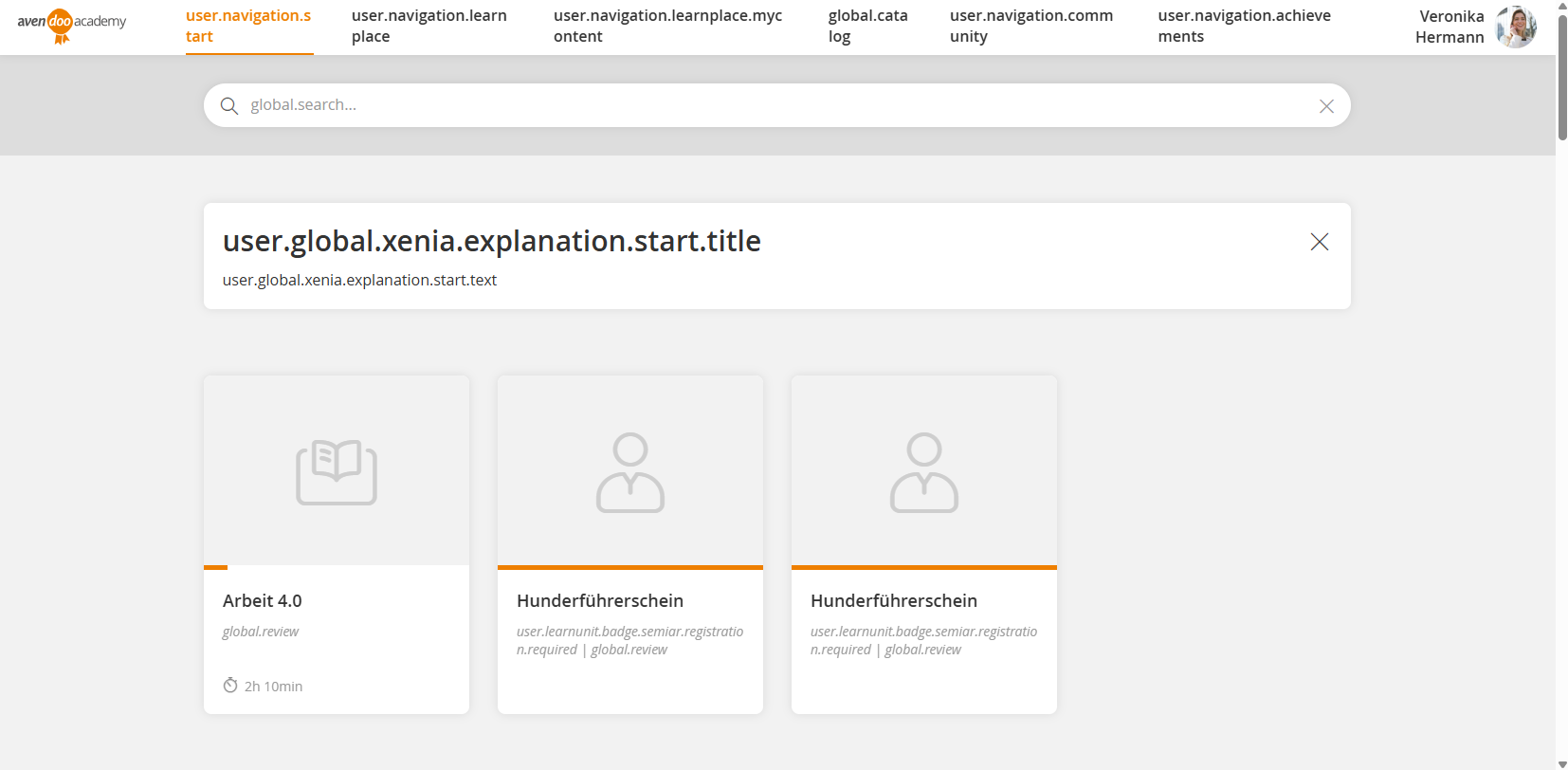
Displaying Bundle Keys in the Frontend
When you open the user interface, add the suffix in the browser’s address bar ?bundleKey=true after the part ui/index .
Example
https://academy.avendoo.de/ui/index?bundleKey=true/index#/start
Displays the start page in the frontend with Bundle Keys instead of the interface texts.
Displaying Bundle Keys in the Content
When you open the content (e.g., course), add the suffix in the browser’s address bar ?bundleKey=true at the end of the URL.
Example
https://academy.avendoo.de/c/course?bundleKey=true
Displays the course with Bundle Keys instead of the interface texts.
Searching for Bundle Keys in the Bundle File
Every text in the Avendoo interface is stored in a central bundle file. You can search this file for the corresponding text to determine the Bundle Key.
You can request an up-to-date bundle file from your Avendoo contact person.
The suffix bundleKey=true is only available in the frontend and content area of Avendoo.
If your browser’s address bar cannot be changed, you can copy the URL to a new window or tab and add the suffix.
2
Go to Administration → System Settings and open the system setting changed.bundles.xml by clicking on the title.
3
Insert the Bundle Key (e.g. user.global.explanation.learnplace.title) and the Desired Text (e.g. Learning Area) in the System Setting. Use the Equal Sign = as the Assignment Character.
Example
global.appTitle=Avendoo Lernwelt

user.global.explanation.learnplace.title=Lernbereich


global.appTitle=Avendoo world of learning

user.global.explanation.learnplace.title=Learning area
The Texts Can Be Stored for Every Available Interface Language. Insert the Bundle Key with an Equal Sign and Text in the Corresponding Section (e.g.
In the changed.bundles.xml System Setting, You Should Only Maintain the Changed System Texts.
4
Save the system setting and check your change in the interface.
Prerequisites
Author account with the permission System settings: Change, create