


Upgrade, Downgrade, or Delete Qualifications in the Cockpit
As a team leader, you can view the qualifications of your employees in the cockpit, as well as upgrade, downgrade, or delete them. Read this guide to learn how to proceed.
1
In the Cockpit, go to the Qualifications area.
2
Click on the User Name of the desired employee. The Employee View opens. It is indicated by an overlay in the lower center of the window.
3
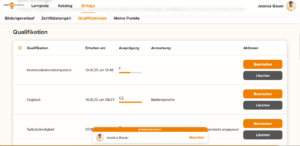
In the Employee View, go to the tab Achievements → Qualifications. Here you can now see the qualifications the person has.
4
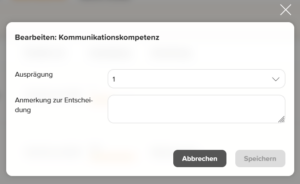
Clicking Delete removes the assigned qualification from the employee. Click Edit to downgrade or upgrade a qualification. A dialog window will open, allowing you to change the scale value of the qualification and add a remark on decision.
5
Click on Save.
Prerequisites
Team leader account with the permissions
- Qualifications in the Cockpit
- View Training Inventory Entries
- Create Training Inventory Entries for Employees
Was this article helpful?
Thank you for your feedback!