


New reservation
As a Team leader, would you like to reserve a place in a Training offering for another Person? This guide provides step-by-step instructions on how to Create a New reservation.
1
Go to Cockpit → Reservations and click on New reservation. The Employee view opens.
2
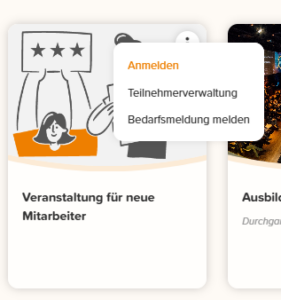
Search for the desired Training offering and click on the three points on the corresponding tile. Then select Register. A dialog window opens.
3
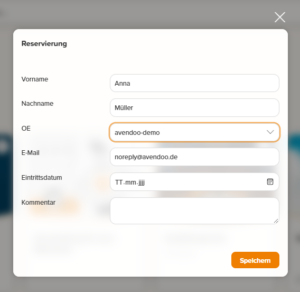
Enter the First name, Last name, the Organizational unit and the E-mail address of the Person for whom you wish to create the reservation.
4
Click on Save to create the reservation.
The created reservation is then displayed in the Cockpit under Reservations in the Overview.
Prerequisites
Team leader account with the Permissions: Make a reservation and enter a possible Number of reservations.
Was this article helpful?
Thank you for your feedback!