


Create Feedback (v2.0) with Linked Questions
With Feedback (v2.0), you can use if-then logic to display feedback questions depending on previous answers. For example, if a question is answered with “Yes”, a suitable follow-up question can then be displayed. This guide explains which settings are required for this.
1
Go to Learning content → Feedback (v2.0) and select Create.
2
Enter a title and, under Usage, select the option Collect feedback from participants. Questions can only be linked if only this option is selected.
3
Switch to the Parameters tab and, under Display, select the option Show questions step by step. This setting is a prerequisite for using linked questions.
4
Switch to the Feedback questions tab and select Add questions to select the desired feedback questions.
Links can be set up for questions of the Yes/no and Single choice types.
5
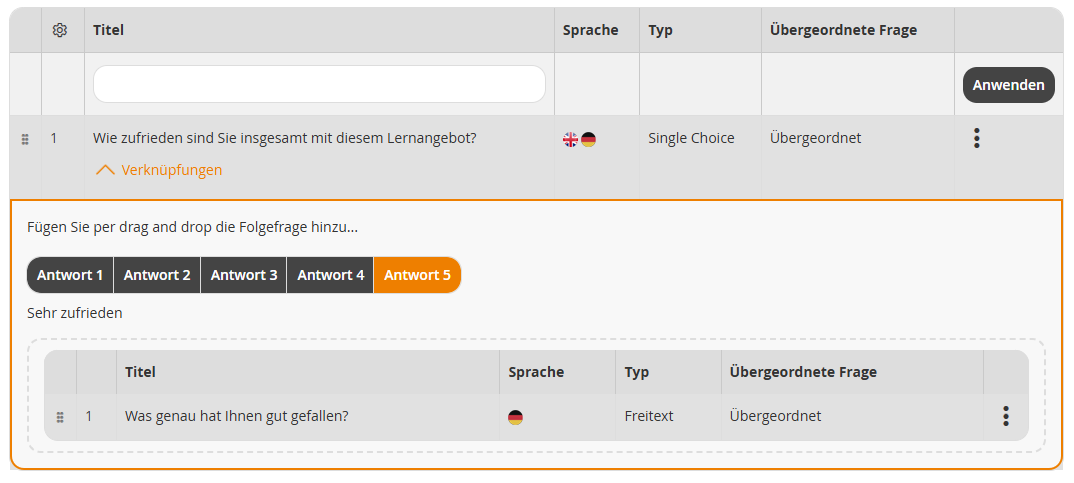
Open the linking area of the relevant question by clicking Links. Select the answer for which a follow-up question should be displayed.
Then drag a feedback question that has already been added into the marked drop area using Drag & Drop.
Note:
- The follow-up question can be any question type.
- If the follow-up question is also of the Yes/no or Single choice type, you can also define another follow-up question for it.
- A feedback question can be used at most once in the entire feedback.
- A maximum of two linking levels is possible.
6
Design the Main page and Save the feedback.
Prerequisites
Author account with the Feedback (v2.0): Change, create and Feedback questions: Select permissions