


Send invitation
An invitation in Avendoo is a notification that is sent to participants of an event date. It provides information about the event details and officially invites the participants. For example, it can be sent as soon as it is confirmed that the event will take place, for instance, because the minimum number of participants has been reached.
Delivery can occur automatically at a specified time before the event date. You define whether and when the invitation is sent automatically in the Event wizard. Alternatively, you can send the invitation manually via the Event management. This guide explains how to proceed.
1
Go to Event management → Overview of event date or Overview by event date group and click on the Event title to open the Event management for a future event date.
2
On the Overview tab, select the Send invitations option. The notification window will open.
The number in parentheses shows you how many participants will receive an invitation. Only participants of the event date who have not yet received an invitation are considered. Participants who have already been invited automatically or manually will not receive another invitation.
An updated invitation will only be sent if important general conditions of the event have Changed, for example, Date, Time, Town, or Main speaker.
3
Check the Message texts in the Notification preview. If necessary, you can adjust it via Edit news. Alternatively, you can select another notification template that has been created as an Individual notifications.
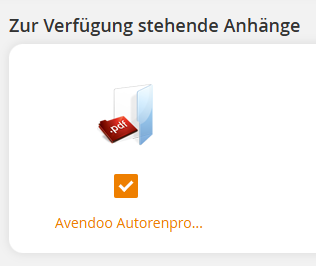
If Attachments have been stored for the E-mail invitation and released for the event date, they will be displayed under Available appendices. Select the Files that are to be Sent with the invitation. You can deselect already Selected Attachments if required.
4
Click Send to release the invitation for Delivery.
You can view Sent notifications for event dates in the Event management under E-mail history or History of community messages.
Prerequisites
Authors account with Access to an Activation client and the following Authors permissions:
- Access to the event manager
- All or Own event dates: Show event dates
- All or Own event dates: Send invitation
- Individual notifications: Select