


Migration Feedback (v1.0) to Feedback (v2.0)
If you want to migrate an existing Feedback (v1.0) to a Feedback (v2.0), this step-by-step guide will show you how to proceed.
1
Go to Learning content → Feedback (v1.0). Open the Feedback (v1.0) that you want to migrate to a Feedback (v2.0).
2
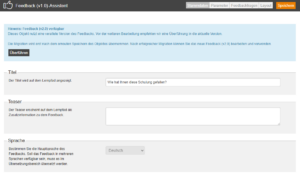
The Feedback (v1.0) wizard opens. The note “Feedback (v2.0) available” is displayed there. Click on Convert.
3
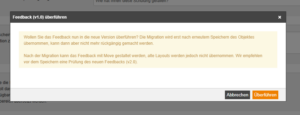
A dialog box opens with a security prompt. Confirm the migration with Convert.
4
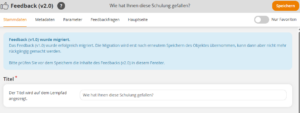
You automatically switch to the Feedback (v2.0) wizard. There you will receive the message that the Feedback (v1.0) was successfully migrated to a Feedback (v2.0). Check that all settings were transferred correctly.
5
The previous layouts are not automatically transferred during migration. This gives you the opportunity to redesign the main page of your feedback in Avendoo Move. To do this, switch to the Main page tab and create the desired layout. Our tip: Open the Feedback (v1.0) in preview to conveniently transfer existing texts.
6
Finally, click on Save. Only then will the Feedback (v1.0) be converted to a Feedback (v2.0).
Requirements
The migration of feedback has been activated via the beta functions.
Once a converted version (v2.0) exists for a Feedback (v1.0), this cannot be undone.