


Text editor with AI support (BETA)
If you need support with the wording of texts, you can access AI support directly via the text editor. A pre-selection based on text length, content, tone, and style is available to you. This step-by-step guide shows you how to use AI in the text editor.
1
Navigate, for example, to Resources → Individual notifications.
2
Use the Create button to create a new individual notification, or open an existing individual notification by clicking the title in the list view. In the wizard for individual notifications, switch to the E-mail parameters tab.
3
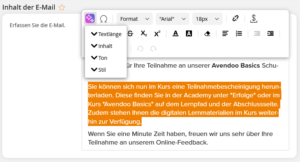
Click in the text field in the Content of the e-mail field. Compose a text that you would like to optimize with the AI and highlight this text. The text editor contains an AI button (see figure). Click the button and choose the type of way the text you formulated should be revised by the AI.
4
A suggestion for your text will be displayed directly in the text field. You can repeat the process any number of times until you like the suggestion.
5
Use Save to apply the suggestion to your individual notification.
Note: Work through the text paragraph by paragraph so that titles and paragraphs are preserved.
Prerequisites:
- You have installed and configured the AI package.
- Author account with the permission AI Package Addon (Add-ons): Text editor AI support.