


Create user-defined fields
User-defined fields are input fields that you as an author can create yourself. You can name the field, add a short description text, and select the field type: you can choose from multiselect, dropdown, and object selection fields, as well as a text field or a date field. Learn here how to create the fields and make them available at the respective usage location.
1
As an author, click on Administration → User-defined fields → Create.
The User-defined fields wizard opens.
2
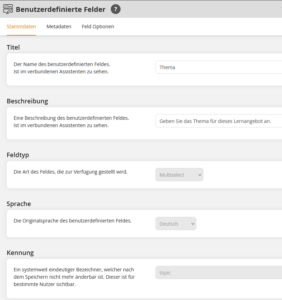
On the Master data tab, assign a meaningful Title and a Description, and select one of the above-mentioned field types. You must also assign an Identifier that consists of one word and cannot be changed afterwards.
3
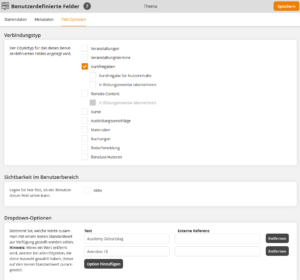
On the Options field tab, select the Connection type (in which wizard the field should appear) and whether the field should be visible in the user area. Further down, you can enter the response options for user-defined fields of type dropdown or multiselect.
4
Save the user-defined field.
Prerequisites
Author account with the permission User-defined fields: Change, Create.
Was this article helpful?
Thank you for your feedback!