


Using the Accordion in Move
The Move element Accordion allows you to display content clearly and space-efficiently – e.g., for FAQs or explanatory texts that lead from an overview to details.
1
To insert an Accordion, click Interactive in the Move Editor menu, then click Accordion and drag & drop it to the desired position.
2
To configure the Accordion, click the pencil in the dialog window:
- Colors: Define when which Elements work with which Colors.
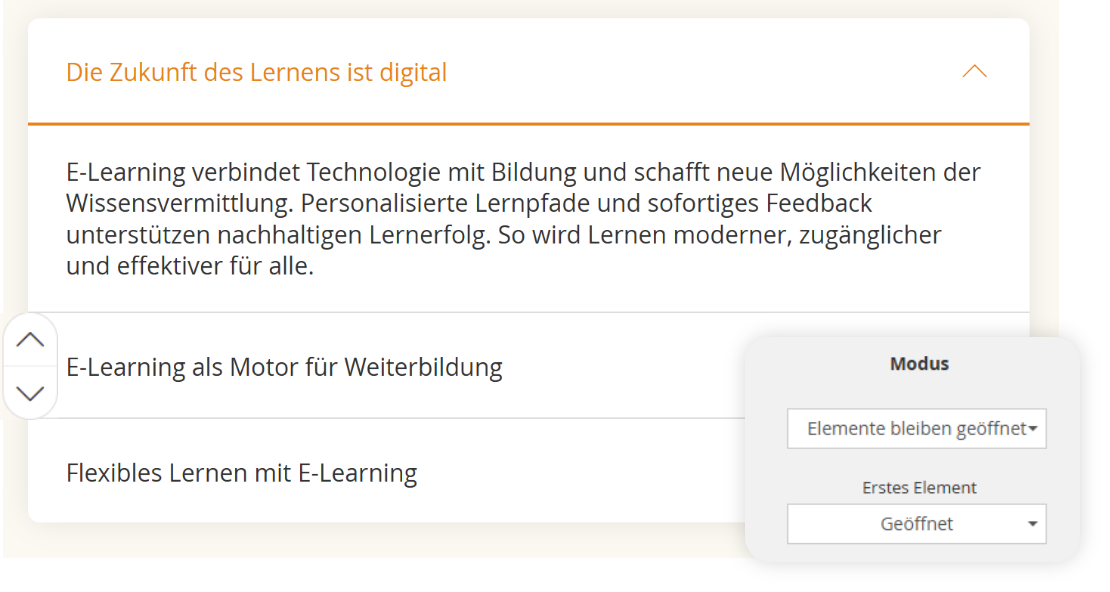
- Mode: Configure whether Elements should be open and whether they should remain open.
3
To configure the Accordion, click the Area of the Accordion that you want to adjust.
- + Add: Adds another Accordion Element.
- UP and DOWN arrows: Moves the Accordion Element up or down.
- Edit Accordion Label: Click the Text or navigate using the arrow next to the Label.
- Text editor: Click into the body Text and adjust Formatting, Layout, and style.
- Remove: Use the trash can Icon to Delete an Accordion Element if needed.
Was this article helpful?
Thank you for your feedback!