


Design Templates
Design templates are predefined layouts and design frameworks for content. They serve as a visual template that can be used as often as required and help display content in the desired design while saving time. Design templates can be created for various object types, for example for Instructional material, knowledge tests, or courses.
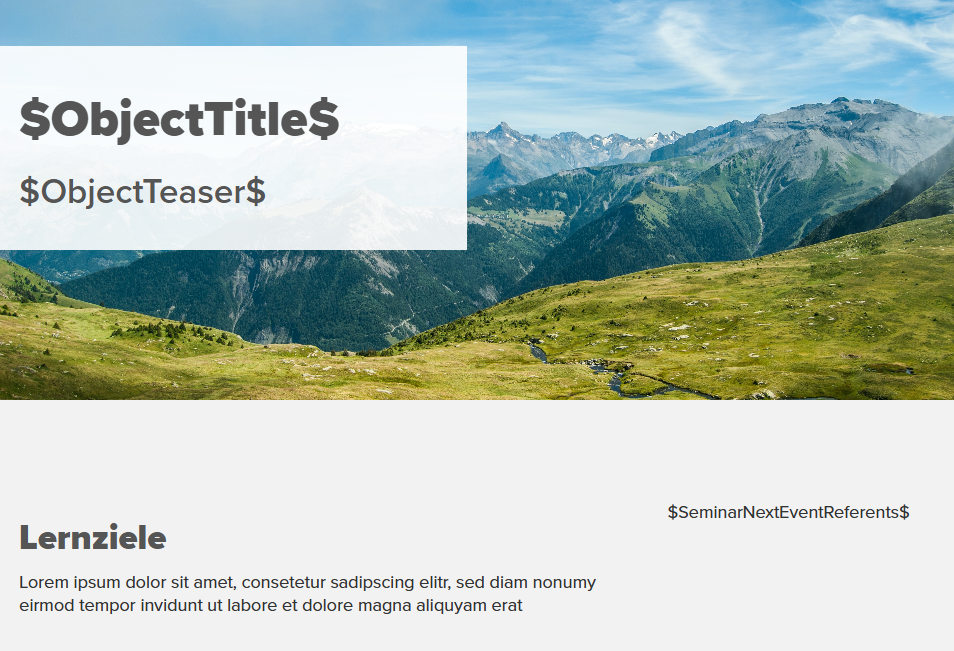
Variables can be used in design templates (e.g., $ObjectTitle$ or $ObjectTeaser$). These placeholders are automatically populated with the respective content of the object and displayed dynamically in the layout. This allows content to be integrated flexibly and automatically without having to be maintained manually in multiple places.
1
Go to Resources → Design templates and click Create. The design template wizard opens.
2
Under Master data, enter a meaningful title and select a design template type and, if applicable, a design template subtype.
Example: You would like to create a template for an info page of the course. Select Courses as the design template type. Then select Info page as the subtype of the design template.
3
Under Type of editing, select Move if possible. To select Standard, you must have knowledge of HTML and CSS. When the design template is finished, also set the status to Active.
4
On the Design template tab, create your template with Move or with HTML/CSS.
5
Under Preview, you can create a preview image that enables authors to select the appropriate design template.
Prerequisites:
Author account with the permission Design templates: Change, create