


New Virtual Location (Microsoft Teams – Online Meeting)
This guide explains how to create a new virtual location for Microsoft Teams in Avendoo. This can be used when scheduling events and automatically generates an access link at a specified time. The ‘Microsoft Teams – Online Meeting’ interface offers advanced features such as automatic attendance tracking based on presence or additional permissions for the presenter in the meeting (e.g. creating group rooms). This requires that the ‘Online Meeting’ interface is set up in Microsoft 365.
1
Log in as an author and navigate to Resources → Locations.
2
Create a new location of type Virtual Location.
3
Enter a title and use Microsoft Teams – Online Meeting as the Virtual Classroom Type.
4
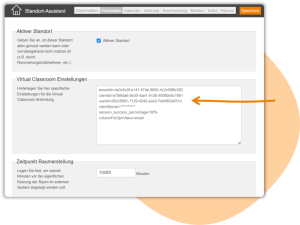
Switch to the Parameters tab and fill in the Virtual Classroom Settings field as follows:
- tenantId=Enter the tenant ID from the app registration.
- clientId=Enter the client ID from the app registration.
- userId=Enter the UPN of the Teams user in which the Teams rooms are created.
- clientSecret=Enter the value of the secret that was set during setup in Microsoft 365.
- session_success_percentage=Enter a percentage value above which participation is considered successful (e.g. 70%).
- columnForUpnValue=Specify how speakers are identified in Teams meetings and automatically become co-organisers of the online meeting (e.g. email).
Please pay attention to the spelling of the parameters and do not use spaces, as they will otherwise not be recognized.
5
Perform additional configurations (e.g., time of room creation, pre-visibility of the link).
6
Save the location.
Additional Settings
The following additional parameters are possible for the ‘Microsoft Teams – Online Meeting’ interface:
Attendance Percentage
Presenter as Co-organizer
Enter the attendance percentage (e.g., 50%) from which a participant should be marked as Present. Attendances can be retrieved in the Event Manager on the Attendance List tab.
Example: session_success_percentage=50%
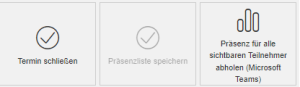
Please note that attendances can only be assigned if participants join the Teams meeting with the same email address that is also stored in the Avendoo user data.
Attendance is recorded based on the appointment period stored in Avendoo. Times before or after the appointment, as well as late opening or early closing of the room, are not taken into account. Therefore, 100% attendance should not be required.
Specify how speakers are identified in the Teams meeting and automatically become co-organizers of the online meeting. This grants speakers in Teams more rights, such as
- email for the email address
- login for the username
- identity_provider_user_id for the IDP User ID
Example: columnForUpnValue=email
Please note that identification is only possible if the presenters are in the same organization as the Teams user of the virtual location.
Important for automatic room creation with “Microsoft Teams – Online Meeting”
All speakers must be registered in the organization’s Microsoft tenant. If a speaker is not known, the meeting cannot be created via the interface—i.e., no link for the meeting will be generated.
Zum Tenant gehören in der Regel alle Accounts mit der E-Mail Domain der Organisation, ggf. auch zusätzliche Domains z.B. von Tochterfirmen) Externe Referenten können als Gast hinzugefügt werden, sofern die IT-Richtlinien der Organisation dies erlauben. Dazu müssen sie:
- be invited as a guest in Teams,
- Accept the invitation and log in with your own Microsoft account (Teams license required).
These steps must be completed before scheduling appointments.
Prerequisites
- Author account with the permission Resources: View and edit VC settings at the location
- The Teams API is set up in Microsoft 365.