


New Virtual Location (Microsoft Teams)
In this guide, you will learn how to create a new virtual location for Microsoft Teams (virtual classroom type: ‘Microsoft Teams’) in Avendoo. This can be used when creating appointments in events and automatically generates an access link at a specified time. The prerequisite is that the Teams API is set up in Microsoft 365.
1
Log in as an author and navigate to Resources → Locations.
2
Create a new location of type Virtual Location.
3
Geben Sie einen Titel ein und verwenden Sie als Virtual Classroom Typ Microsoft Teams – Online Meeting.
4
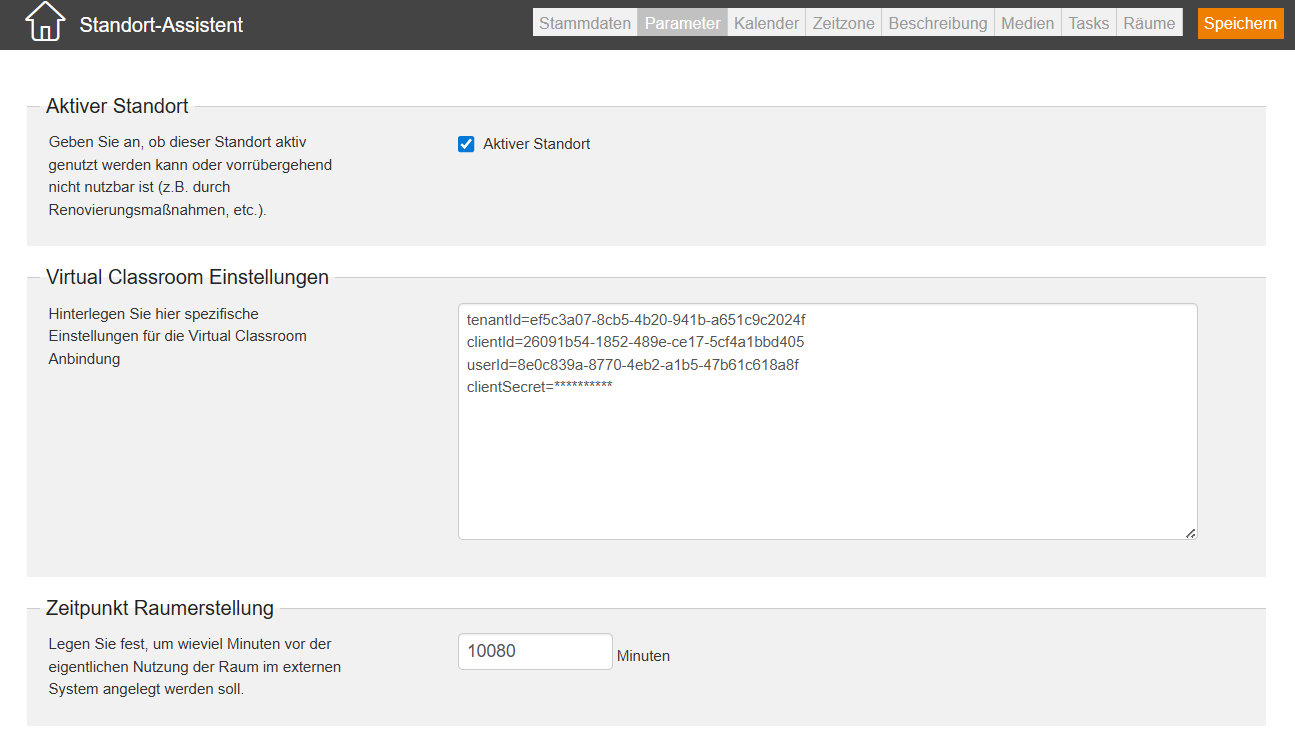
Switch to the Parameters tab and fill in the Virtual Classroom Settings field as follows:
- tenantId=Enter the tenant ID from the app registration.
- clientId=Enter the client ID from the app registration.
- userId=Enter the UPN of the Teams user in which the Teams rooms are created.
- clientSecret=Enter the value of the secret that was set during setup in Microsoft 365.
Please pay attention to the spelling of the parameters and do not use spaces, as they will otherwise not be recognized.
5
Perform additional configurations (e.g., time of room creation, pre-visibility of the link).
6
Save the location.
Tips
- Make a note of the expiry date of the ClientSecret and replace it in good time before it expires. Otherwise, Avendoo will no longer be able to retrieve or send emails.
- When naming the ClientSecret, make sure to use a meaningful name. It should be clear where in Avendoo the secret needs to be exchanged. A combination of client name and location title is recommended.
- Konfigurieren Sie die Werte unter dem Reiter „Parameter“ sinnvoll. Der Wert „Zeitpunkt Raumerstellung“ sollte mindestens 1440 Minuten (ein Tag) betragen. Andernfalls wird die API erst sehr spät angesprochen, was Tests erschwert.
Prerequisites
- Author account with the permission Resources: View and edit VC settings at the location
- The Teams API in Microsoft 365 is set up
Was this article helpful?
Thank you for your feedback!