


Start deep linking
After you have created an LTI content connector, the Start deep linking function is available in Avendoo. With deep linking, an author can open a provider system containing learning content directly from Avendoo and select specific individual resources. The external system then returns the selected elements to Avendoo, which creates remote content from them. This content is a type of “deep link resource”. This guide explains how the deep linking process is carried out in Avendoo.
1
Go to Resources → Content connector.
2
Select the Start deep linking option for the desired content connector. A new window opens in which the provider system offers one or more options for synchronizing content.
The following section demonstrates the procedure when the provider system is also an Avendoo learning world.
For deep linking content from other providers, please consult the corresponding manual of the respective provider.
3
Click Start to perform the deep linking. The content selection window opens.
4
Select the desired content individually by clicking on the corresponding learning unit tiles. Alternatively, click Select all. 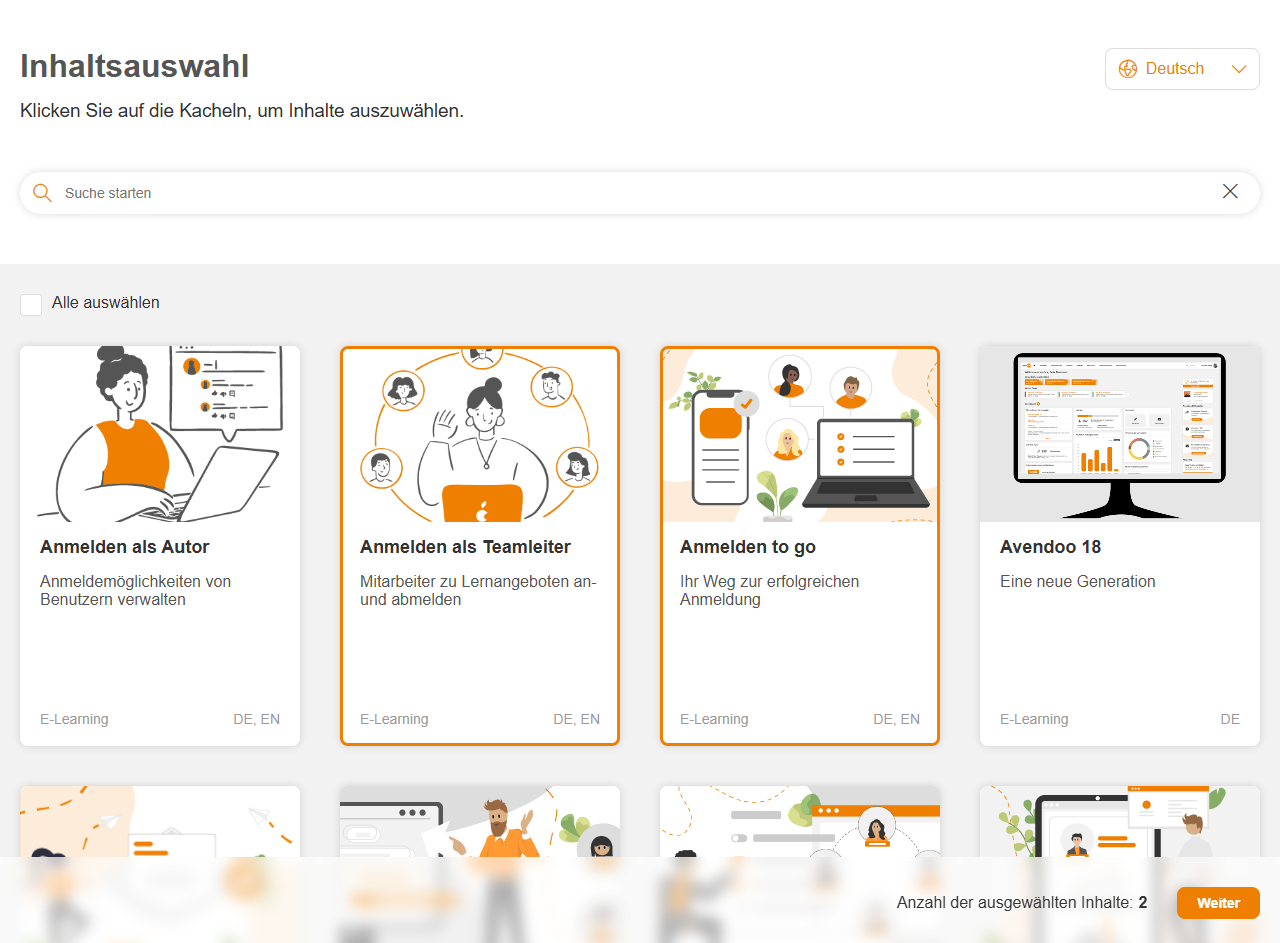
The offers are also searchable and filterable by language.
5
Confirm your selection by clicking Next. Avendoo displays an overview of the selected content. You can synchronize these by clicking Apply.
All synchronized content is listed in a tabular overview. Possible changes are displayed in the Status column.
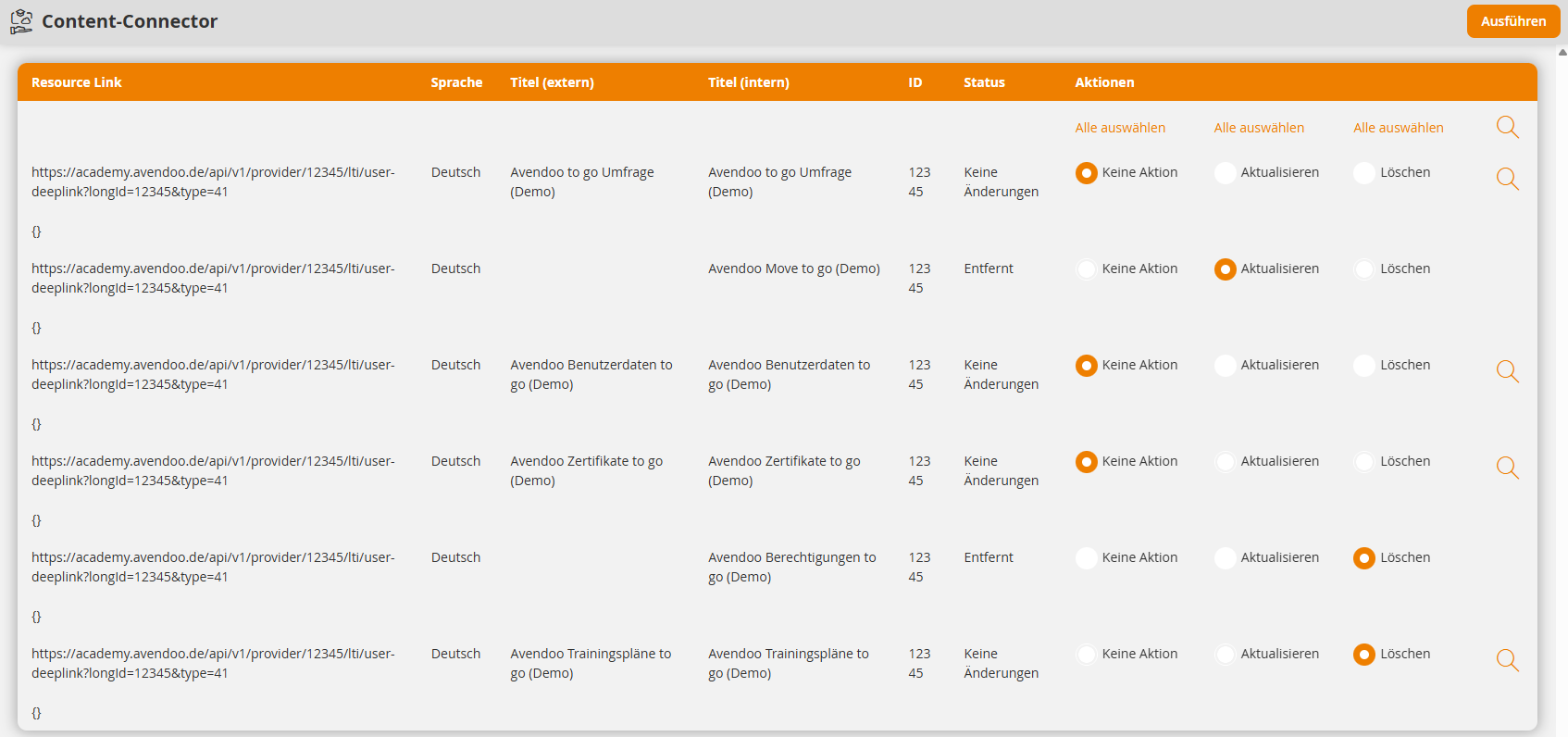
New
The remote content is not yet included in your Avendoo system and can be added.
No changes
The status of the remote content from the provider system matches the status in your Avendoo system.
Removed
The remote content was removed in the provider system or was not selected by you during content selection.
6
In the Actions column, select the desired action for each remote content item.
No action
Makes no changes to the current state of your remote content from this provider.
Update
This action refers to the Status column. If a remote content item is new, it will be added. If a remote content item has been removed, it will be removed by the update.
Delete
Deletes the corresponding remote content.
7
Click Execute. The update has been completed.
Prerequisites
- Author account with the permission Content Connector: View
- Fully configured content connector connected to a provider system