


Set up automatic notifications for events
This function allows authors to configure one or more automatic notifications for event dates. These are sent automatically based on a selected trigger (e.g. time). This guide explains how to set it up.
1
Log in as an author and go to Learning Content → Events.
2
Create a new event or edit an existing one by clicking on the title.
3
Switch to the Notifications → Additional Notifications tab.
4
Under Automatic Notifications, click the Add Notification button.
A window for individual notifications will open. Select an existing notification or create a new notification of the type “Follow up event invitation”. Confirm your selection by clicking the Select button.
5
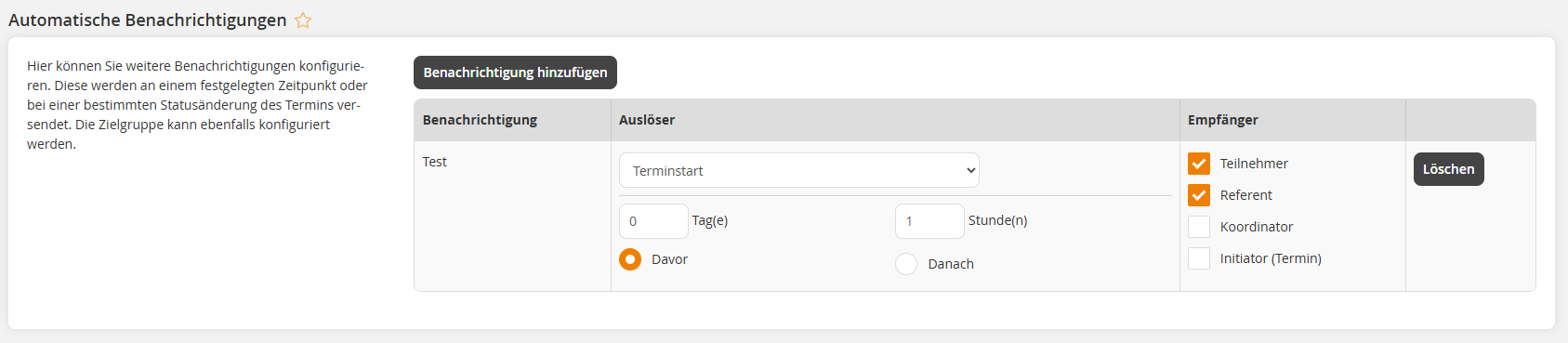
Now select a trigger for the notification (Event date activation, Event date start, Invitation rejected by participant etc.).
Some options offer the possibility to adjust the trigger in time by defining a shift of a certain number of days and hours before or after the actual event.
Example: If you want to remind the participants and the speaker of the event one hour before the event starts, select the trigger “Event date start”, enter one hour and set the option “Before”.
6
Select one or more recipients.
Example: To remind the participant and speaker of the event, select “Participants” and “Speakers”.
7
Save the event.
The notification is automatically sent for each event date of the event, provided the trigger applies. For example, an automatic notification with the trigger “Event date cancellation” is only triggered if an event date is cancelled.
Prerequisites
- Author account with the permission Event: Change, create
- Further permissions are required for creating and editing individual notifications
- The event contains active event dates
- The event is included in an active course activation