


Overviews by event dates, event date groups, and prospect lists
In event management, you can choose between the overview by event dates, event date groups, and prospect lists. Learn here how the overviews differ and what options are available to you in each case.
Overview of event dates
In the overview of event dates, you can directly access event dates. Main event dates, as well as follow-up event dates from an event group, are listed individually here. In the list view, clicking on the title of the event date takes you to the event manager, which offers you registration and deregistration as well as other management options. The event icon takes you to the event wizard of the event associated with the event date. The calendar icon takes you directly to the editing view of the selected event date.
In the overview of event dates, in addition to the list view, you have other options that can support you in managing event dates:
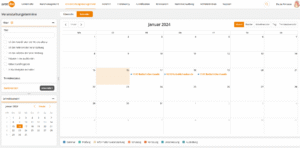
Calendar View
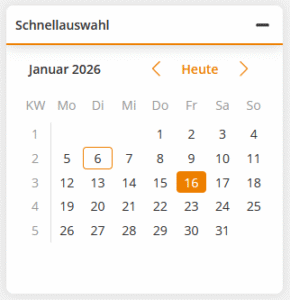
Fast selection
Overview by event date groups
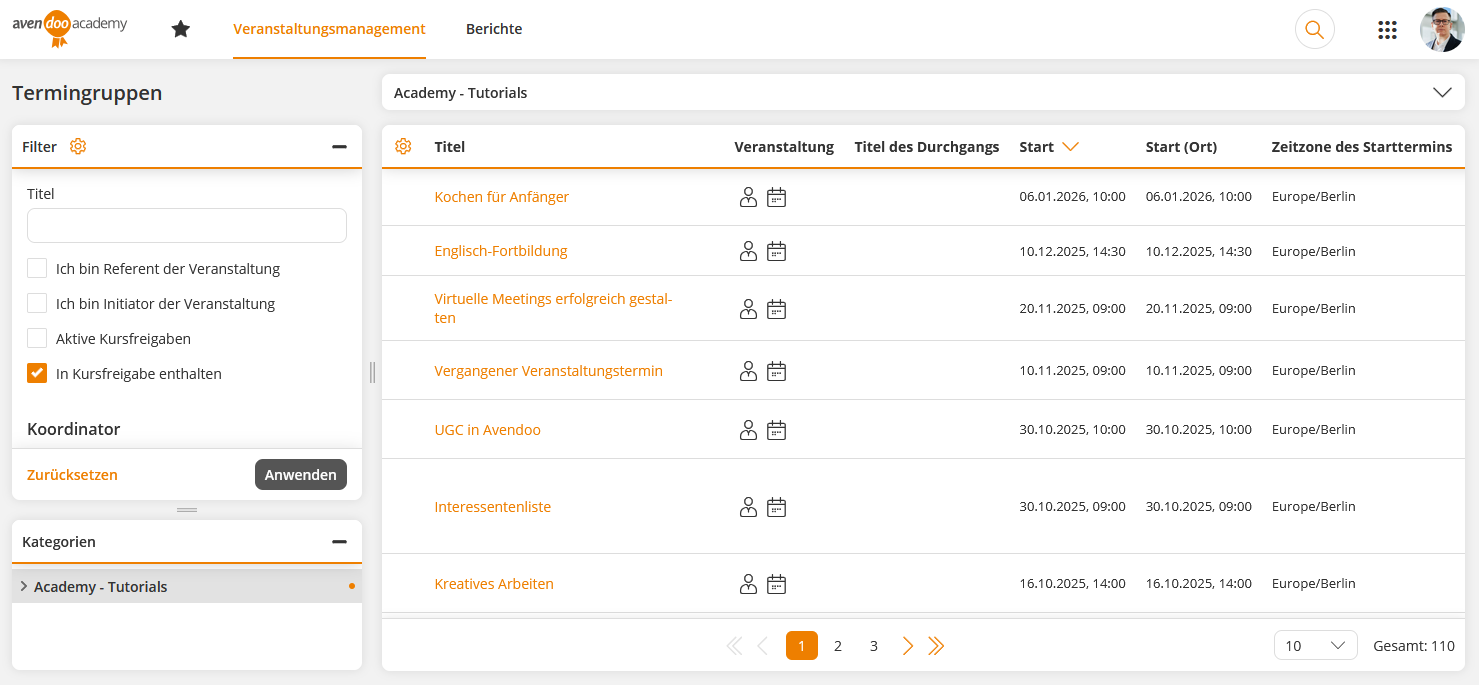
In the overview by event date groups, Avendoo lists the main event dates of event groups. Avendoo forms an event group from the start of the main event date to the end of the last follow-up event date (if there are no follow-up event dates, the end of the main event date is also the end of the event date group).
In the list view, clicking on the title of the main event date takes you to the event manager. The event icon takes you to the event wizard of the event associated with the event dates. The calendar icon takes you directly to the editing view of the selected event date group.
Overview by prospect lists
The overview by prosepect lists shows all interested party lists that have been created in various events. This gives you the opportunity to quickly see how many interested parties are registered in the respective list.
In the list view, clicking on the title of the interested party list takes you to the event manager, which offers you registration and deregistration as well as other management options. The event icon takes you to the event wizard of the event associated with the interested party list. The calendar icon takes you directly to the interested party list wizard of the selected interested party list.
Filter
You can customize the display in the list view and calendar view via the filter settings. Not all filters are displayed, but they can be activated by clicking on the gear icon .
The following filters are available to you by default: