


Changing the Event Date Status in the Event Manager
On the overview page in the Event Manager, you have the option to change the event date status. This allows you, for example, to cancel an event date or to set an event date from Initiated to Active, making it visible to everyone in the frontend. The event date status can also be changed in other places, namely in the Event date wizard or in the Overview of event date. You can read here how to edit the Event date status in the Event Manager.
1
Go to Event management → Overview of event date or Overview by event date group and click the Event title to open the Event Manager for a date.
2
On the Overview tab, select the Change the event date status option.
3
The Change the event date status dialog box opens. Select the desired new Status. You can choose between Initiated, Active, and Canceled.
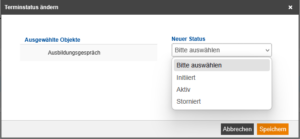
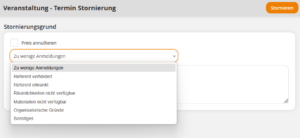
If you select Canceled, a window opens where you can select the reason for cancelation and enter a comment. Click Cancel event dates to cancel the event date.
4
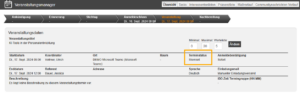
You will be returned to the event date overview, where you can check whether the event date status has changed as desired.
Prerequisites
Author account with access to an activation client and the following author permissions:
- Access to the Event Manager
- All or Own event dates: Show event dates
Was this article helpful?
Thank you for your feedback!