


Add Participants to an Event Date
As an author, you can register a participant for an event date using the Event Manager. By registering for the event date, you automatically register the user in an associated course activation as well. If multiple course activations are linked, you can specify which course activation is used for the registration. Registration via the Event Manager is possible at any time and is not tied to the start of the event, the end of registration, or similar. Read here how to proceed when registering for an event date.
1
Go to Event management → Overview of event date or Overview by event date group and click the Event title to open the Event Manager for a date.
2
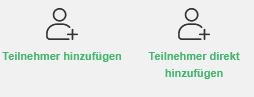
On the Overview tab, select Add participants or Add participant directly. If you select Add participant directly, you can place participants directly on the list of participants even if the maximum number of participants has already been reached, without taking the detour via the waiting list.
3
The Event participants dialog window opens. Select the desired participants. If required, use the filters User is already a course participant and Show registered users to narrow down the selection. Click Select.
4
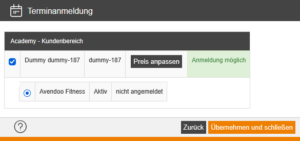
The Registration of event date window opens. Here you can see for each participant whether registration is possible or whether there are overlapping event dates within your learning environment. The course activation used is also displayed. If the event is linked to multiple course activations, you can choose here which course activation the user should be added to. You can also adjust the price for individual participants here if required.
5
Click Apply and close to complete the registrations. The added participants are then displayed in the Participants/Waiting List sub-tab.
6
If you would like to change the price afterwards or delete a participant, click the three dots for the relevant participant in the Functions column.
Prerequisites
Author account with access to an activation client and the following author permissions:
- Access to the Event Manager
- All or Own event dates: Show event dates
- All or Own event dates: Do deregistrations and registrations
- User: Select
- Course activation: Select