


Send follow-up notification
With the Follow-up option, you can re-contact participants at any time before, during, or after an event date in the Event management. This allows you to share additional or new information that was not included in the Confirmation of registration or invitation. The option is therefore sometimes also referred to as “Follow up with event invitation.” However, it can be used flexibly and any number of times. This guide explains how to proceed.
1
Go to Event management → Overview of event date or Overview by event date group and click on the Event title to open the Event management for an event date.
2
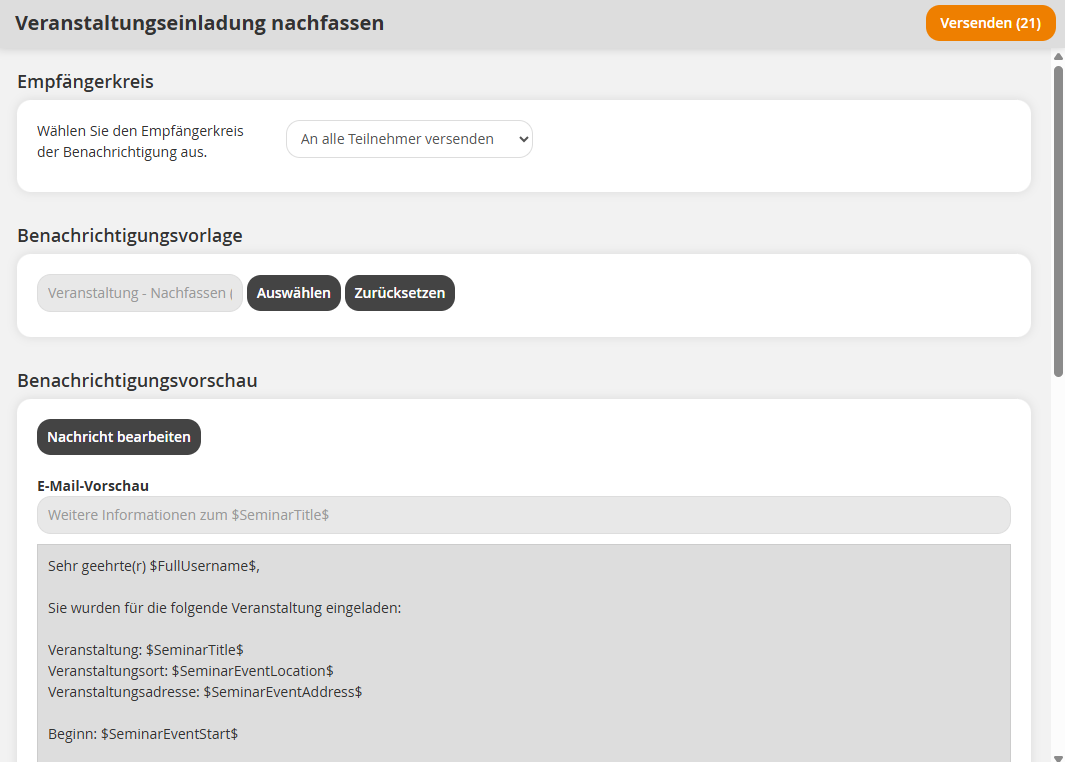
On the Overview tab, select the Follow-up option. The notification window will open.
The number in parentheses shows you how many participants you can follow up with. All participants of the event date are considered.
3
Under Recipients, select who should receive the notification.
Send to all participants
Send the notification to all participants on the List of participants. Canceled participants and participants on the Waiting list are not considered.
Recipients by attendance list status
Select participants based on their status in the Attendance list (Not attempted, Not passed, Passed).
For example, you can inform all participants who did not pass an exam event about the next steps.
Individual recipient selection
Select individual participants from the List of participants. Additionally, you can add Speakers, Coordinators, and Superiors of the participants to the Recipients.
4
Check the Message texts in the Notification preview. If necessary, you can adjust it via Edit news. Alternatively, you can select another notification template that has been created as an Individual notifications.
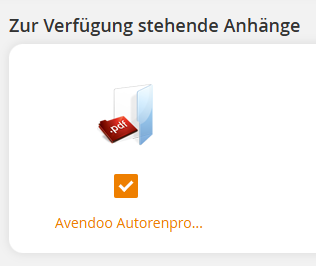
If Attachments have been stored for the Follow-up notification and released for the event date, they will be displayed under Available appendices. Select the Files that are to be sent with the invitation. You can deselect already Selected Attachments if required.
5
Click Send to release the notification for Delivery.
You can view Sent notifications for event dates in the Event management under E-mail history or History of community messages.
Prerequisites
Author account with access to an activation client and the following author permissions:
- Access to the event manager
- All or Own event dates: Show event dates
- All or Own event dates: Send a Follow-up E-mail and a Thank-you E-mail
- User: Select
- Individual notifications: Select