


Table Configuration
If you would like team leaders to have additional information about the listed persons available in the My Substitutions and My Substitutes areas, you can configure the corresponding columns via the Table Configurations.
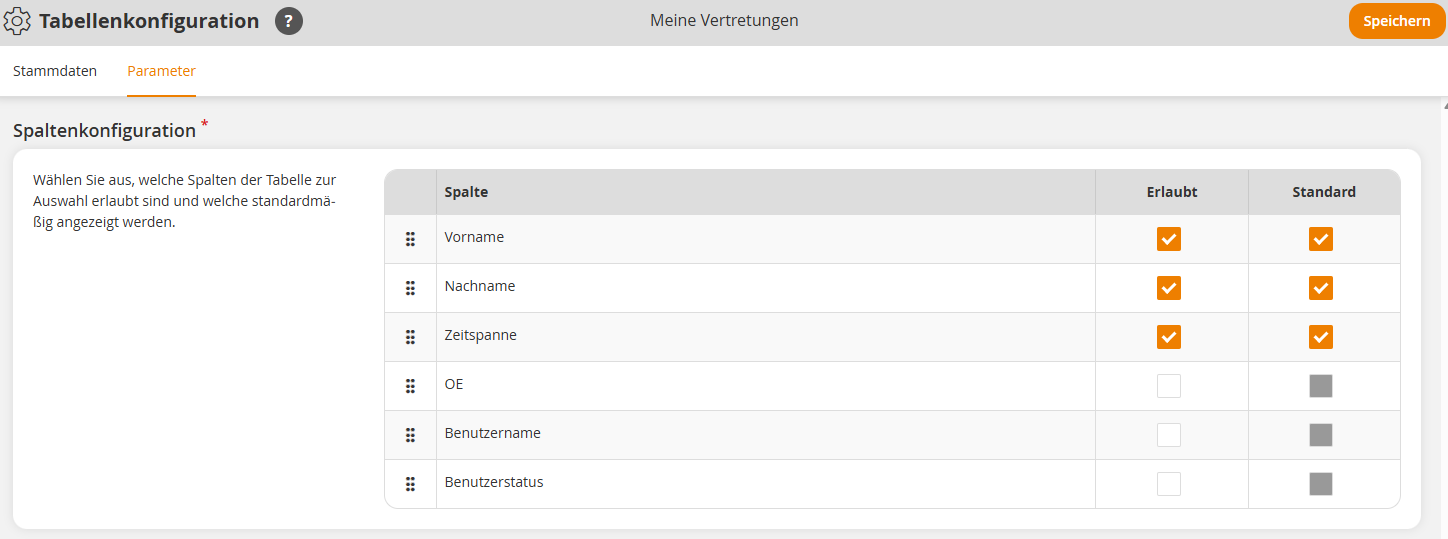
You define which columns team leaders can select themselves and which columns are displayed in the table by default. For example, you can provide OU, Login, or User Status and thus facilitate the unique matching of persons with identical or similar names.
1
Go to Administration → Table Configurations and select My Substitutes or My Substitutions.
2
The Table Configuration Wizard opens. Assign a title and switch to the Parameters tab.
3
Define which columns are available for selection in the table and which columns are displayed by default.
4
Click Save to apply the table configuration.
Requirements
Author account with the permission Administration (Objects): Modify, Create Table Configuration
Was this article helpful?
Thank you for your feedback!