


Creating tasks in a course activation
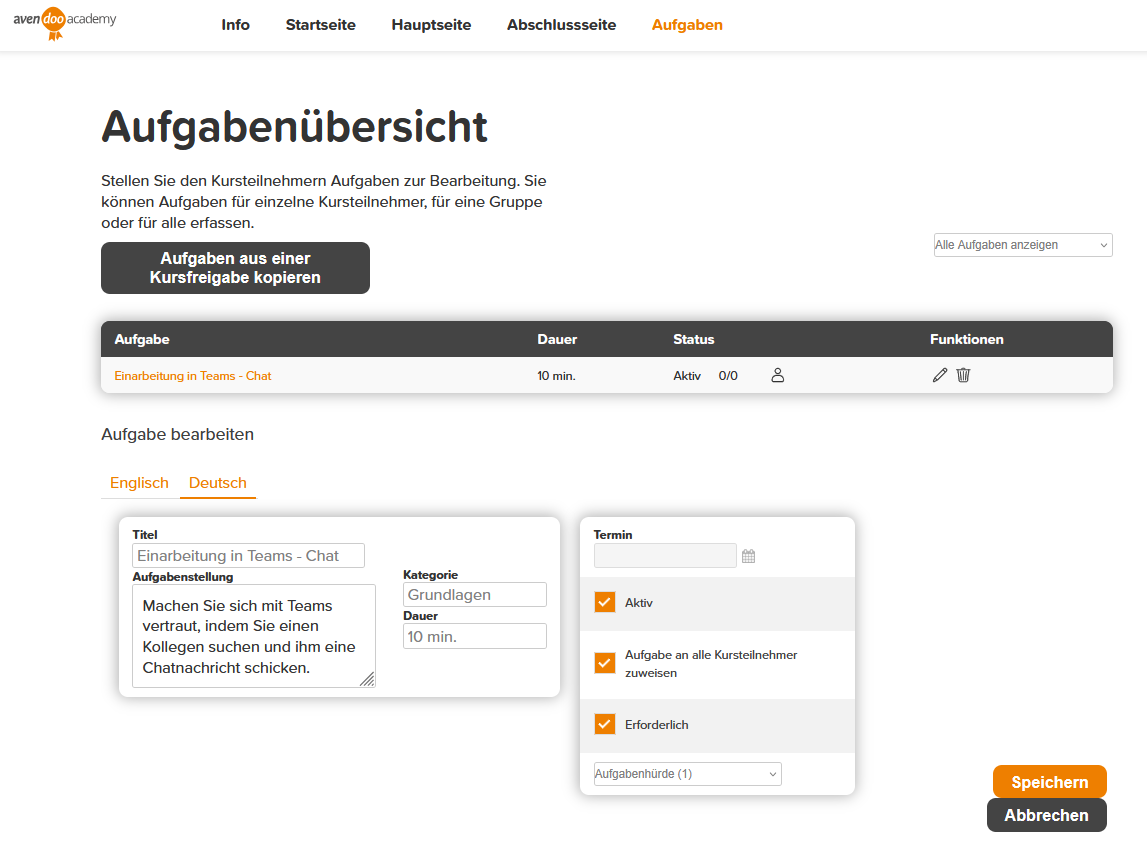
Tasks are a useful collaboration tool that can be used in many ways. They can help organize the learning process and set clear goals. Learners can be actively involved by marking tasks as completed themselves. Tasks can be individually customized and used with task hurdles as a prerequisite for progress on the learning path. You can find out how to create and edit tasks here:
Please note: These tasks are different to the ones you can create for events!
1
As an Author, go to Course management → Course activations and in the List view, click on the Preview (country flag) of the course activation for which you want to create or check off tasks.
2
The Course activation preview opens. In this window, click on the Tasks tab at the top. Here you can copy tasks from another course activation, record new tasks, or mark existing tasks as completed for individual participants.
3
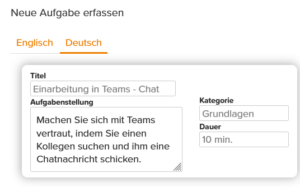
To record a new task, first select the Language in which the task should be created.
Note: You must always create the task in all languages of the course activation.
4
Enter a Title, write a Task text, and if you wish, you can assign a Category or a Duration. The category can later be filtered using the drop-down menu above the task listing.
5
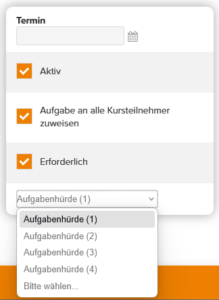
In the adjacent selection area, you can set a Date by which the task should be completed. You can set the task to active. As soon as a task is active, it is visible and can be assigned to individual course participants of the course activation. If the task is required, you can mark it as mandatory. You can also assign the task to all course participants by Checkmark. If the task is only to be assigned to individual course participants, you can do this later in the task listing. In the drop-down field, you can assign the task to a task hurdle. You must have previously inserted this in the Course activation wizard under Course contents on the Learning path.
6
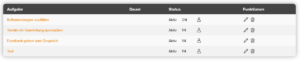
Now click the Save Button in the bottom right. The task will then appear in the task list. In the task list, you can edit a task using the Pencil. The Trash can Symbol allows you to delete the task. The number indicates how many of the Persons who need to complete this task have already completed it (e.g., 2/4). If you click on the Participant symbol, the Overview on task progress opens.
7
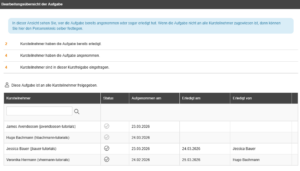
In the Overview on task progress, you can assign the task to individual participants and mark it as completed for selected participants by clicking on the gray checkmark within a circle. You can also see for which participant when and by whom the task was marked as finished.
Prerequisites:
- You have activated the tasks in the Course activation wizard under Parameters.
- To be able to mark tasks as completed for your Employees as a Team leader under your To-do items in the Cockpit, you need the Task manager Permission.