


Grade key
With the grade key, you define how results achieved in knowledge tests or assessments are converted from percentages into specific grades. At the end of the knowledge test or assessment, learners see their grade including a description. Depending on the settings in the learning path, the results are also displayed there. Learn here how to create a grade key.
1
Navigate to Resources → Grade key. Click Create. The grade key wizard opens.
2
Enter a title.
3
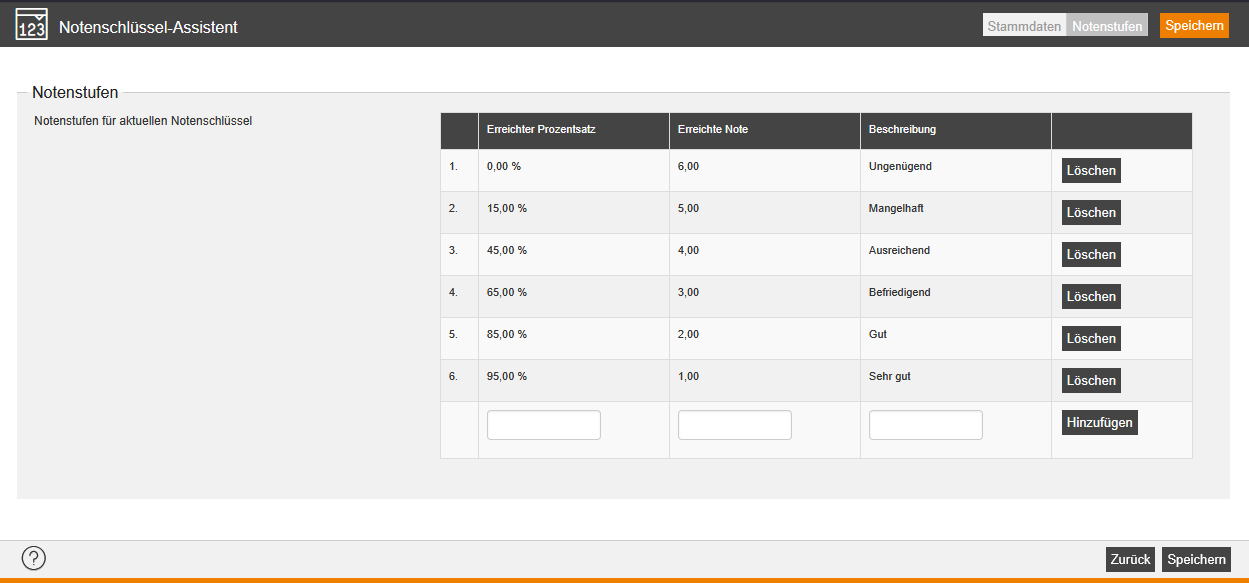
Click on the Grade levels tab. Create the grade levels by entering the attained grade for the percentage attained and finally clicking Add. In addition to school grades, you can also use other systems, such as the spectrum from fully achieved to not achieved at all, etc.
4
Click Save.
You link the grade key when creating a knowledge test or an assessment. You can use any number of grade keys, but only link one grade key per object.
Prerequisites:
Author account with the permission Grade key: Change, create.
Was this article helpful?
Thank you for your feedback!