


Text Editor
The text editor is an important tool in Avendoo and is used in many places. Whenever content is created, it serves to format texts. Depending on the type of content, certain functions may be unavailable or additional options may appear. For example, when creating a cloze question, the editor includes the “Add gap” function.
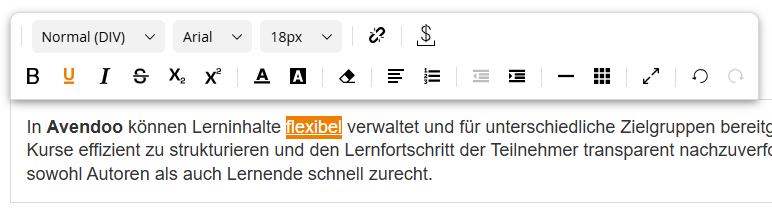
Basic Functions
Format
Select a desired standard formatting for your text. This changes for the selected paragraph.
Formatting already includes fonts, font sizes, colors, and other standard settings.
Examples: Headings, paragraph, quotation
Font
Select a desired font for your text.
Tip: Use the standard formatting. Your standard font in Avendoo is usually already stored for these.
Font Size
You can adjust the font size here.
Tip: Use the standard formatting. Your standard font size in Avendoo is usually already stored for these.
Insert Link
Highlight the desired text and click on the link symbol. The Insert link dialog window opens. In this window, you can enter the link URL. Optionally, you can enter an anchor link or set the link to open in a new window.
Bold
If a text section is highlighted, it will be displayed in bold. If no section is highlighted, text will be written in bold starting from the cursor.
The Bold function is displayed as a large B in the editor.
Underlined
If a text section is highlighted, it will be displayed as underlined. If no section is highlighted, text will be underlined starting from the cursor.
The Underlined function is displayed as an underlined U in the editor.
Italic
If a text section is highlighted, it will be displayed in italics. If no section is highlighted, text will be written in italics starting from the cursor.
The Italic function is displayed as an italicized I in the editor.
Strikethrough
If a text section is highlighted, it will be displayed with a strikethrough. If no section is highlighted, text will be struck through starting from the cursor.
The Strikethrough function is displayed as a struck-through S in the editor.
Subscript
You can use this button to subscript individual text sections.
The Subscript function is displayed as an x with a subscript 2.
Superscript
If you want to superscript characters or text, you should use this button.
Example: m²
The Superscript function is displayed as an x with a superscript 2.
Font color
Select the desired text color.
Highlight color
Select a color to be used as a background for the text.
Remove formatting
Remove all formatting in the text area you have selected.
Alignment
The highlighted text can be aligned. If no text is highlighted, the current paragraph will be aligned accordingly.
The following alignments are possible:
- Align left
- Align center
- Align right
- Justify
List
The highlighted area is displayed as a list. If no area is highlighted, the current paragraph is treated as the first item. Each subsequent paragraph is created as an additional item.
The following lists are possible:
- Numbered list
- Bullet list
Reduce indent / increase indent
The indent of the desired paragraph is increased. The text appears indented. For paragraphs that are already indented, the indent can be reduced.
Horizontal line
Insert a horizontal line above the cursor.
Table
Insert a table. A dialog window opens in which you can define the number of columns and rows.
Example: 4 x 3 is a table with 4 columns and 3 rows.
Fullscreen
Activate fullscreen mode to enlarge the text editing area and work without distractions.
Undo / Redo
Undo reverses the last action and restores the previous state of the text. Redo restores an action that was previously undone.
Further functions
The following editor functions are only available when creating and editing certain content.
Insert variables
Add an Avendoo variable to insert, for example, the user’s name in the text. Depending on the content, the appropriate variables are available to you.
The Insert variables function is displayed as a dollar sign $ in the editor.
Link instructional materials
Create a link to another existing instructional material page within the same instructional material.
Prerequisite: This function is only available when editing instructional material.
Add gap
Add a gap within a fill-in-the-blank knowledge test question.
Prerequisite: This function is only available when editing a fill-in-the-blank knowledge test question.
Insert speaker slider
Insert a speaker slider for an event to introduce the scheduled speakers to users on the event main page.
If a user is not yet registered for an event date, all speakers for future event dates will be displayed.
If a user is registered for an event date, the speakers for that event date will be displayed.
Prerequisite: This function is only available when editing an event.
AI support in the text editor
Use AI-assisted writing suggestions directly in the Text editor.
This function is currently only available in the wizard for individual notifications.
Prerequisite: You have installed and set up the AI package and have an author account with the permission AI Package Addon (Add-on): Text editor AI support.