


Create permission groups
In the permission group, you can define permissions for users, team leaders, and authors. Ideally, one permission group will be sufficient for all types of users. Learn how to create a permission group here.
1
As an author, navigate in the backend to User management → Permission groups and then click the Create button. The Permission group wizard will open.
2
Under Master data, assign a title for the permission group.
3
Under Assign team leader rights, Assign author rights and Assign user rights, you can define the default permissions for the respective user types. Check the boxes of the permissions that your users, team leaders, or authors should receive by default.
4
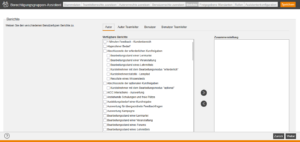
Under Reports, you can make a selection of reports available to users by default. First, select the user type (e.g., Author) and then check the boxes for the reports that should be available for this user type.
5
Under the Released clients tab, you define which cliens the permission group can be assigned to. Under Assign visible clients, you define which clients authors with this permission group have access to.
6
Under Roles, you can define, if necessary, which roles the members of the group should receive. All roles of the assigned clients are available. The role will then be automatically assigned to all users with this permission group.
7
Under Wizard configuration, you can assign one or more wizard configurations.
8
Save.
You can then assign the permission group to users. This grants the selected users all defined permissions, depending on their user type (Author, User, Team Leader).
Note
- If a user is a member of multiple permission groups, all rights from these permission groups are combined.
- If a right is additionally assigned manually, it supplements the existing permissions.
The user therefore always has all rights assigned to them through the groups and manually.
Prerequisites
Author account with the permission Permission Groups: Change/Create and Clients: Select