


Create translation
If you want to translate an object, such as instructional material, these instructions will show you step by step how to do it.
1
Go to Learning content → Instructional materials. In the list view, click the translation symbol to the right of the desired instructional material. The translation area will open in a new window.
2
Select the language into which the Instructional material is to be translated and click Create translation. Then click Edit. A new window will open.
3
In the Master data area, you can translate the title and teaser. You have the option of copying the original, having the content automatically translated with AI, or manually entering the translation in the corresponding fields.
4
Switch to the Content editor tab and click Do a translation. A new window will open where the instructional material pages created with Move can be translated. Here you can translate both the page title and the page content.
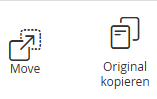
- To translate with Move, click Copy original in the upper area and then click Move. Move will open, and you can create the translation there. Accept it.
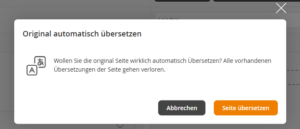
- Alternatively, you can translate the instructional material pages directly in the translation area using AI without opening Move. To do this, click Automatically translate original and confirm the translation in the following dialog.
5
Then click Accept & close and then click Save again.
6
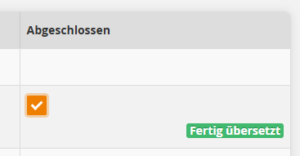
To finalize the translation, check the box at Completed and save again.
Prerequisites:
- Author account with the right General: View, create and edit translations
- The Automatically translate original function requires the setup of a translation plugin.