


Customize System Texts (Changed.Bundles.Xml)
This guide explains how to customize system texts system-wide in the Avendoo interface. Alternatively, you can also customize system texts for a single client.
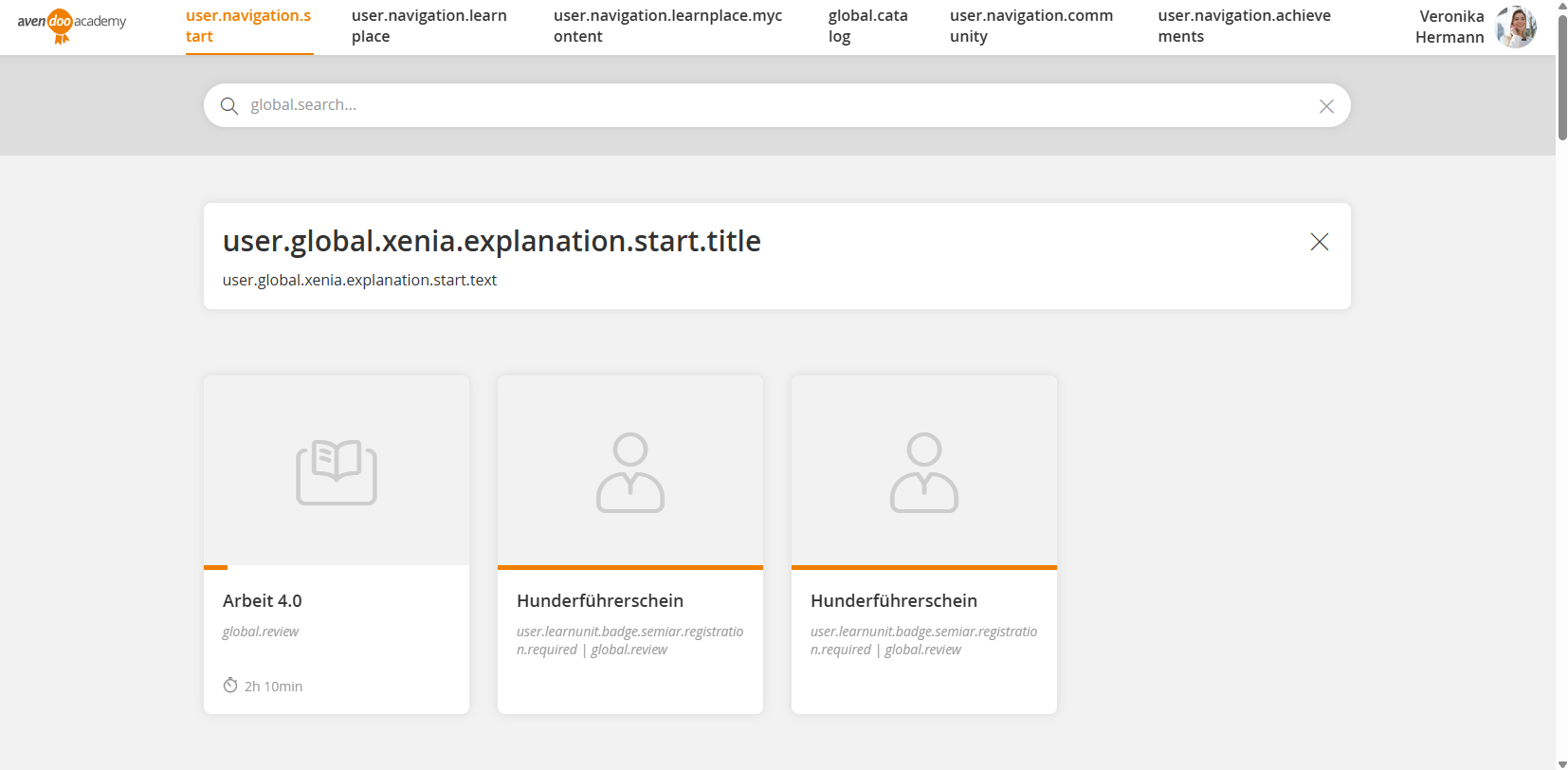
1
First, determine the so-called Bundle Key (unique identifier for interface texts in Avendoo). Various options are available to determine the Bundle Key.
Displaying Bundle Keys in the Frontend
When you open the user interface, add the suffix in the browser’s address bar ?bundleKey=true after the part ui/index .
Example
https://academy.avendoo.de/ui/index?bundleKey=true/index#/start
Displays the start page in the frontend with Bundle Keys instead of the interface texts.
Displaying Bundle Keys in the Content
When you open the content (e.g., course), add the suffix in the browser’s address bar ?bundleKey=true at the end of the URL.
Example
https://academy.avendoo.de/c/course?bundleKey=true
Displays the course with Bundle Keys instead of the interface texts.
Searching for Bundle Keys in the Bundle File
Every text in the Avendoo interface is stored in a central bundle file. You can search this file for the corresponding text to determine the Bundle Key.
You can request an up-to-date bundle file from your Avendoo contact person.
The suffix bundleKey=true is only available in the frontend and content area of Avendoo.
If your browser’s address bar cannot be changed, you can copy the URL to a new window or tab and add the suffix.
2
Go to Administration → System Settings and open the system setting changed.bundles.xml by clicking on the title.
3
In the system setting, add the Bundle Key (e.g., user.global.explanation.learnplace.title) and the desired text (e.g., Learning Area). As the assignment character, use the equals sign =.
Example
<?xml version="1.0" encoding="UTF-8" standalone="yes"?>

<changedBundles>

<text language="de">

global.appTitle=Avendoo Lernwelt

user.global.explanation.learnplace.title=Lernbereich

</text>

<text language="en">

global.appTitle=Avendoo world of learning

user.global.explanation.learnplace.title=Learning area

</text>

</changedBundles>
The texts can be stored for each available interface language. Add the Bundle Key with an equals sign and the text for it in the corresponding section (e.g., <text language="de">...</text> for German). A separate line in the system setting is required for each text change.
In the system setting changed.bundles.xml, you should maintain only the changed system texts.
4
Save the system setting and check your change in the interface.
Prerequisites
Author account with the permission System settings: Change, create