


Report need
If, as a team leader, you would like to report a training need for your employees, these instructions will show you how to do so.
1
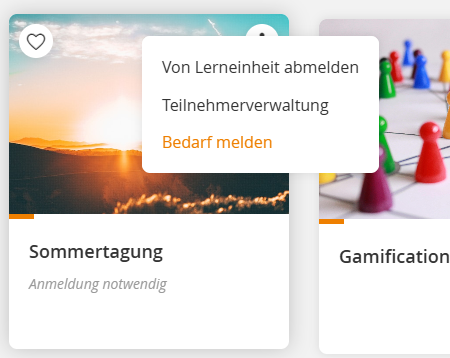
In the Learning Space or in the Catalog, go to the desired course with event and click on the icon on the course tile and select Report need.
2
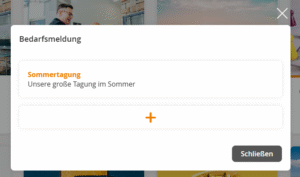
A dialog window will open. Click on the icon to add a new need for this course.
3
Select whether you want to record a need for an employee or for an organizational unit:
Option 1
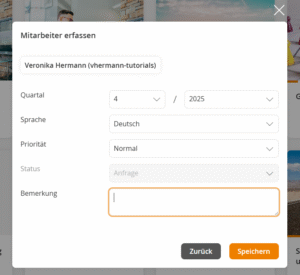
If you select Record employee, search for the desired user and confirm with Record employee. You can then specify settings for the need report, such as the desired quarter or language.
Save your entries.
Option 2
If you select Record organizational unit, the corresponding settings are displayed directly. Select the organizational unit and the desired options and save.
Your need report has now been recorded and is awaiting further processing by the responsible department in the backend.
Prerequisite
Team leader of an organizational unit with the right: Training needs