


Employee view
The employee view in the cockpit enables the team leader to view the learning environment from an employee’s perspective. If the team leader has the appropriate permissions, they can enroll and unenroll employees in learning offerings and view their achievements. However, in this view, the team leader cannot edit the course. This guide explains how to access the employee view.
1
In the cockpit, go to the Employees section.
2
Click the username of the desired employee.
3
The employee view opens. It is indicated by an overlay at the bottom center of the window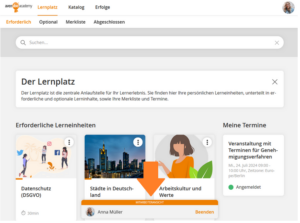 .
.
In the employee view, you can see which courses the employee is enrolled in. Via the catalog, you can enroll or unenroll them in additional courses. If you have the permission, you can also view your employees’ achievements or even add to them.
Prerequisites
- User is a team leader with the “Manage course participants” permission
- To view achievements, the “View training inventory entries” permission is required; for editing, “CCreate training inventory entries for employees” is required.
Was this article helpful?
Thank you for your feedback!